Laptop In UAE - Berjaya Electronics Trading LLC
Black Spot on Laptop Screen: Causes, Fixes & Repair Guide

Black Spot on Laptop Screen: Causes, Fixes & Repair Guide (UAE & Dubai 2026)

A black spot on your laptop screen usually appears without warning. One day you open the lid, and a dark dot or patch is sitting over your work. It will not wipe away, and it will not move when you drag a window across it.

The good news is that some black spots are harmless dirt. The bad news is that others are physically damage inside the panel, and a few of them grow. This guide shows you how to tell the difference in about two minutes, what you can safely fix yourself, and what it means for laptop owners in Dubai and across the UAE.

What Is a Black Spot on a Laptop Screen?

A black spot is any dark dot, blotch or patch on your display that stays in place regardless of what is on the screen. People also call it a black dot on the laptop screen, a dark spot, or a black patch.

The word “spot” covers five very different faults. Four of them live inside the LCD panel and cannot be cleaned off. Only one of them is good news.

What Causes Black Spots on a Laptop Screen?

Surface Dirt and Dust

Dust, dried water marks, sunscreen, or sticky residue can look exactly like a defect. The tell is simple: surface dirt looks the same whether the screen shows white or black, because it sits on top of the image rather than inside it.

Dead Pixels and Stuck Pixels

A dead pixel is a single pinpoint dot where all three subpixels have stopped lighting up. Dell’s own documentation describes a dark subpixel as one that stays permanently off, showing as a black dot on a white background. A stuck pixel is the coloured version, locked on red, green or blue.

One dead pixel rarely spreads. A cluster that keeps gaining members means the panel is failing.

Pressure Marks on the LCD Layer

This is the most common cause we see in the UAE. Close a laptop lid on earbuds, a pen, a charging cable, or a car key, and the liquid crystal layer gets crushed at that point. The result is a soft-edged dark blotch, often the size of a coin. Overstuffed backpacks cause the same damage slowly, over weeks.

Spreading LCD Damage (Ink Blots)

If the dark area has irregular edges, sometimes with a rainbow halo or thin lines radiating outward, liquid crystal is leaking from a cracked inner layer. This type always spreads. Photograph it today and compare it to next week. If it grew, plan for a replacement.

Backlight and Diffuser Faults

A grey, cloudy patch rather than a true black one, most visible on a white page and usually near an edge, points to the LED backlight or its diffuser sheet. The panel image is fine; the light behind it is not.

Why Heat Makes This Worse in the UAE

Liquid crystal is temperature-sensitive, and the Gulf climate is unforgiving. A laptop left on a car seat in a Dubai summer can reach internal temperatures far above every manufacturer’s stated storage limit, and extreme heat both accelerates existing crystal damage and stresses the adhesive layers in the panel stack. Fine dust from shamal winds adds a second problem: it settles between the lid and the screen, then grinds into the coating when the lid closes.

Never leave a laptop in a parked car here. It is the single most common preventable cause of screen and battery failure in the region.

How to Identify Your Black Spot in Two Minutes

Open a plain white page, then a plain black one, and compare what you see.

What you seeOn whiteOn blackEdgesMost likely cause
Speck that looks like it is on the glassVisibleVisible, unchangedSharp, sits on topDirt – clean it
Pinpoint dot, one pixel wideVisibleInvisiblePerfectly squareDead pixel
Coloured pinpoint dotFaintVisiblePerfectly squareStuck pixel
Coin-sized blotch, soft edgesVisibleFaint or invisibleSoft, sometimes ringedPressure mark
Dark area with ragged edges or a haloVisibleFaint outlineIrregular, inkySpreading LCD damage
Grey cloudy patch near an edgeVisibleInvisibleFuzzy, no edgeBacklight or diffuser fault

The rule to remember: dirt ignores what is on the screen, while damage changes with the image behind it.

How to Fix a Black Spot on a Laptop Screen

Step 1 – Clean the Screen Safely

Power the laptop off. Wipe the spot gently with a dry microfibre cloth. If it does not move, dampen the cloth very slightly with distilled water and try again. Apple, Dell and HP all advise the same thing in their care documentation: never spray liquid directly onto the display, and never use household glass cleaner. Ammonia strips the anti-glare coating and turns a cleaning job into permanent haze.

If the spot lifts, you are done. If it does not, it is inside the panel.

Step 2 – Run a Dead Pixel Test

Cycle the screen through solid white, black, red, green and blue at full screen. A free browser-based dead pixel test does this in seconds. Count the dots and note their positions; you will need this if you claim warranty.

Step 3 – Try Pixel-Repair Software

Tools such as JScreenFix flash rapid colours over the affected area to revive a stuck pixel. This works on some stuck pixels. It will not revive a genuinely dead pixel, and it does nothing for pressure marks. Run it for around ten minutes before giving up.

Step 4 – Rule Out a Graphics or Cable Fault

Connect an external monitor. If the spot appears on the external display too, the problem is your graphics driver or GPU, not the panel. Update your display driver first. If the external screen is clean, the fault is in the laptop panel or its ribbon cable. A discoloured or tinted display instead of a spot points somewhere different – our guide on why a laptop screen turns green covers that case.

Never Press or Massage the Spot

You will find advice online telling you to rub or press black spots out with a cloth or an eraser. Do not do it. That trick dates from thick desktop LCDs and stuck pixels. On a modern laptop panel, pressing on damaged liquid crystal pushes the damage outward, so a coin-sized mark becomes a palm-sized one. Repair shops see this constantly.

Is a Black Spot Covered Under Warranty in the UAE?

It depends entirely on which fault you have.

Pixel defects are sometimes covered. Every manufacturer allows a set number of defective subpixels before a panel counts as faulty. Dell publishes the clearest thresholds: for laptop screens at HD+ (1600 Γ— 900) resolution and above, zero bright subpixels are allowed and up to five dark subpixels are tolerated. On HD (1366 Γ— 768) panels, up to two bright and five dark subpixels are permitted. Exceed the limit within the warranty period and you are entitled to a replacement panel. HP and Apple publish similar defect policies.

Pressure marks and cracks are not covered. Manufacturers classify these as customer-induced physical damage, excluded from standard warranty. Only an accidental-damage plan purchased with the machine covers them.

In the UAE, keep your original tax invoice. Consumer protection rules under the Ministry of Economy require the seller to honour the stated warranty terms, and regional service centres will ask for proof of purchase and the serial number before authorising a panel swap.

Laptop Screen Replacement or New Laptop: What Makes Sense in Dubai?

An in-panel black spot cannot be repaired at the spot level. The only fix is a new panel, matched exactly to your model by size, resolution, connector type, refresh rate and touch capability.

Replacement makes sense when the laptop is under three years old, still fast, and otherwise healthy. It stops making sense when:

  • The panel is OLED, high-refresh or touch-bonded, where the lid assembly must be replaced as a unit and cost climbs sharply
  • The laptop is already slow, out of warranty, or on an old processor generation
  • The quoted repair approaches half the price of a current model

In that second case, the money is better spent on a machine that will last another four years. Browse current laptops to compare, or jump straight to business laptops,gaming laptops and MacBooks. If you want to keep the damaged laptop running as a desktop in the meantime, an external monitor is the cheapest short-term fix.

How to Prevent Black Spots on Your Laptop Screen

  • Check the keyboard before closing the lid. Earbuds, pens, cables and USB sticks are the usual culprits.
  • Never leave a laptop in a parked car. In UAE summer conditions this is the fastest route to panel and battery damage.
  • Use a padded sleeve and do not overpack the bag. Pressure from a water bottle or charger through a backpack is a leading cause. Our laptop bag buying guide covers what actually protects a screen.
  • Never carry the laptop by its open lid, and never lift it by one corner.
  • Keep the vents clear. A machine running hot stresses the whole display stack; see our guide on reducing laptop fan noise for why airflow matters.
  • Clean with a dry microfibre cloth only, gently, with the laptop switched off.

Conclusion

A black spot on a laptop screen is worth two minutes of diagnosis before you spend a dirham. Clean it first. Run a pixel test. Check an external monitor. If the spot is inside the panel and sitting over your working area, no home remedy will bring it back, and no amount of pressing will help.

When replacement is the sensible call, buy from a supplier that knows the local market. UAE Tech Dubai (Berjaya Electronics) supplies genuine, warranty-backed laptops and displays to businesses and home users across the Emirates, at wholesale-competitive pricing.

Can a black spot on a laptop screen spread?

Dead pixels and pressure marks usually stay the same size. A dark area with irregular edges or a rainbow halo is leaking liquid crystal and will keep growing. Photograph it and compare after a week.

Can a black spot be fixed at home?

Only if it is surface dirt, which wipes off with a dry microfibre cloth. Dead pixels, pressure marks and LCD damage sit inside the panel and cannot be repaired at home. A stuck pixel is the one partial exception, and pixel-flashing software occasionally revives it.

Is a black spot the same as a dead pixel?

No. A dead pixel is a single pinpoint dot with perfectly sharp edges. A black spot in everyday use is larger and softer-edged, caused by pressure or a crack in the liquid crystal layer rather than one failed pixel.

Does screen replacement erase my data?

No. A panel swap does not touch your storage drive. That said, always back up before any hardware service. If you are planning a clean start on a new machine, our guide on reformatting a laptop walks through it, and you can add capacity with a RAM or component upgrade.

Where can I buy a replacement laptop in Dubai?

UAE Tech Dubai stocks Dell, HP, Lenovo, Apple, ASUS, Alienware and Microsoft Surface models with free delivery across Dubai, Abu Dhabi, Sharjah and the wider UAE, plus shipping to Saudi Arabia, Qatar, Oman, Kuwait and Bahrain.

Dell Laptop Price in UAE (2026 Guide): Real AED Prices for Dubai Buyers

Dell Laptop Price in UAE (2026 Guide): Real AED Prices for Dubai Buyers

Searching for the Dell laptop price in UAE usually returns a wall of product tiles and no straight answer. This guide gives you the actual price bands, explains why two laptops with the same screen size can differ by AED 8,000, and shows what you should pay in Dubai today.

Dell Laptop Price in UAE at a Glance

Across UAE retailers, Dell laptops sell for roughly AED 1,100 to AED 22,000. Sharaf DG quotes a Dell range of about AED 899 to AED 18,900, while Jumbo Electronics lists most of its Dell stock between AED 2,000 and AED 10,000. The wide spread is not retailer margin – it reflects five very different product families sold under one badge.

Here is how the Dell laptop price in Dubai breaks down by series:

Dell seriesTypical UAE price (AED)Best for
Inspiron1,100 – 3,500Students, home use, office basics
Vostro1,800 – 4,500Small business, SME fleets
Latitude2,500 – 8,000Corporate, managed IT, travel
XPS5,500 – 18,500Designers, executives, creators
G Series3,500 – 7,500Mainstream gaming
Alienware8,000 – 22,000Enthusiast gaming, esports
Precision9,000 – 25,000CAD, 3D, engineering workloads

Prices move with configuration, exchange rates and promotions, so treat these as bands rather than fixed quotes.

What Decides a Dell Laptop’s Price in the UAE

Processor generation and tier

Processor choice is the single largest cost driver. A Core i3 or Core 5 Inspiron sits at the bottom of the range, while an Intel Core Ultra 7 or Ultra 9 configuration can double the price of an otherwise identical chassis. Last-generation chips often deliver 90% of the performance for far less money.

RAM, SSD and graphics

Stepping from 8GB to 32GB of RAM, or from a 512GB SSD to 2TB, adds thousands of dirhams. A discrete NVIDIA GeForce RTX GPU is the other big jump – it is what separates a AED 3,000 Inspiron from a AED 13,500 XPS with the same 16-inch footprint. If you only need more memory later, our laptop RAM upgrade guide explains what is and is not user-serviceable.

Warranty, VAT and grey-market stock

A suspiciously cheap Dell laptop price in Dubai usually means parallel-imported stock with no regional warranty. Legitimate UAE pricing includes 5% VAT and a manufacturer or authorised-dealer warranty. Always confirm warranty terms and the return window before paying – ours are set out in our returns and exchange policy.

Dell Laptop Price in UAE by Series

Dell Inspiron price in UAE

Inspiron is Dell’s volume line and the entry point for most UAE buyers. Expect AED 1,100 to AED 3,500 depending on processor and memory. It handles browsing, Office, online classes and video calls comfortably. Browse the current stock in our laptops collection.

Dell Vostro and Latitude price in UAE

Vostro targets small businesses; Latitude is the corporate workhorse with better build quality, security features and docking support. Latitude typically runs AED 2,500 to AED 8,000. For fleet buyers comparing options across brands, see our business laptops range.

Dell XPS price in UAE

XPS is the premium ultrabook family, and pricing reflects OLED panels, aluminium and carbon-fibre construction, and high-end silicon. At the time of writing, our in-stock examples include the Dell XPS 16 9640 with Core Ultra 7 155H, 64GB RAM, 2TB SSD and RTX 4070 at AED 13,500, the XPS 16 9640 Platinum with Core Ultra 9 185H and 4TB SSD at AED 18,500, and the Dell XPS 17 9730 with Core i9-13900H, 64GB RAM and 2TB SSD reduced to AED 15,800.

Dell G Series and Alienware price in UAE

The G15 and G16 deliver solid frame rates in the AED 3,500 to AED 7,500 band, making them the sensible choice for students who game. Alienware sits above it, with liquid-cooled, RTX 50-series flagship configurations reaching beyond AED 20,000. Compare both in our gaming laptops category and dedicated Alienware collection.

Dell Precision price in UAE

Precision mobile workstations carry ISV certification for CAD, BIM and simulation software – the reason architects and engineers in Dubai pay a premium. Our Dell Pro Precision 7 14 with Core Ultra X7 368H vPro, 64GB RAM and 2TB SSD is currently AED 12,999, down from AED 18,599.

Dell i5 vs Dell i7 Laptop Price in UAE

The Dell i5 laptop price in UAE generally sits AED 700 to AED 1,500 below the equivalent i7 model. For Office work, browsing and light photo editing, an i5 or Core 5 is enough. Choose i7, Core 7 or Core Ultra 7 only if you compile code, edit video, run virtual machines or work in large spreadsheets and CAD files.

Dell Laptop Price in Dubai vs Other Emirates

Retail prices are broadly uniform across the UAE because VAT and import duties are federal. What actually varies is delivery cost and speed. We ship free across Dubai, Abu Dhabi, Sharjah, Ajman, Fujairah, Ras Al Khaimah and Umm Al Quwain, and also deliver to Saudi Arabia, Qatar, Oman, Bahrain and Kuwait – full terms are on our payments and shipping page.

How to Get the Best Dell Laptop Price in Dubai

  • Buy last-generation. A superseded XPS or Latitude often drops 20–30% while losing little real-world speed.
  • Check clearance first. Our current offers regularly discount Dell stock by 7–30%.
  • Match specs to the job. Paying for an RTX GPU you never use is the most common overspend we see.
  • Buy the ecosystem together. Bundling a Dell monitor, keyboard or mouse and a proper laptop bag with the machine is cheaper than buying piecemeal.
  • Ask for a business quote. Volume pricing on Latitude and Precision is available for SMEs and wholesale dealers.

Buy Dell Laptops in UAE from UAE Tech Dubai

If you want the real Dell laptop price in UAE rather than a placeholder range, buy from a UAE-based specialist. UAE Tech Dubai (Berjaya Electronics) has supplied Dell, Lenovo, HP, Apple and Alienware hardware to end users and wholesale computer dealers across the Emirates, with free delivery nationwide, a 7-day return guarantee, secure payment, and support available around the clock.

What is the cheapest Dell laptop price in UAE?

Entry-level Inspiron models start near AED 1,100, though realistic configurations with 8GB RAM and a 512GB SSD begin closer to AED 1,800.

Is it cheaper to buy a Dell laptop in Dubai than online from abroad?

Usually yes, once you account for shipping, 5% VAT, customs handling and the loss of regional warranty coverage. Local purchase also gives you an in-country service path.

Which Dell series offers the best value in the UAE?

For most buyers, Latitude. It brings business-grade chassis quality, serviceability and security at a mid-range price, and it holds resale value better than Inspiron.

Do Dell laptop prices in UAE include VAT?

Prices from UAE-registered retailers are quoted inclusive of 5% VAT. If a price looks far below market, verify VAT registration and warranty documentation.

Why Is My Laptop Screen Green? Causes & Fixes

Why Is My Laptop Screen Green? Causes & Fixes (UAE Guide)

If your laptop screen has suddenly turned green, patchy, or has a green tint over black areas, you’re not alone. This is one of the most common display complaints reported by laptop owners in Dubai and across the UAE, and it can stem from something as simple as a loose cable or as serious as a failing graphics card. This guide breaks down every likely cause, how to test for it yourself, and when it’s time to call in a professional.

What Does a Green Laptop Screen Mean?

A green laptop screen usually points to one of two things: a hardware fault in the display panel, cable, or graphics chip, or a software glitch related to drivers or color settings. In rare cases, it can also resemble the “Green Screen of Death” (GSOD) – a Windows-specific crash screen similar to the Blue Screen of Death, which signals a deeper system or driver failure rather than a physical hardware issue. Knowing which category your problem falls into is the first step to fixing it correctly instead of wasting time (or money) on the wrong repair.

Common Causes of a Green Laptop Screen

Loose or Damaged Display Cable

The display cable (often called the LVDS or eDP cable) connects your laptop’s screen to the motherboard. Repeated opening and closing of the lid, drops, or general wear can loosen or fray this cable, causing a green tint, flickering, or discoloration – especially when you tilt the screen.

Failing Graphics Card (GPU)

If your integrated or dedicated GPU is overheating or degrading, it may struggle to render colors correctly, producing a persistent green cast across the display. This is more common in older laptops or units that run hot during gaming or heavy multitasking – a problem closely linked to poor thermal management, which we cover in our guide on fixing laptop overheating in Dubai and the UAE.

Outdated or Corrupted Display Drivers

Graphics drivers manage how your operating system communicates with the display. When they’re outdated, corrupted, or conflicting with a recent Windows update, colors can shift, distort, or take on a green hue – even though the hardware itself is fine.

Physical Damage to the LCD Panel

A cracked screen, pressure damage, or liquid exposure can damage the LCD panel’s internal layers. Even a small hairline crack can disrupt color rendering and cause a dominant green or discolored patch.

Incorrect Display or Color Settings

Occasionally, the fix is far simpler than expected. Incorrect color calibration, a misconfigured graphics control panel (Intel, AMD, or NVIDIA), or a faulty color profile can all produce a green tint that has nothing to do with hardware failure.

How to Diagnose the Real Cause

Before attempting any repair, run this simple test:

  1. Connect your laptop to an external monitor via HDMI or USB-C.
  2. Press Windows + P and select Duplicate.
  3. If the external display looks normal, the fault lies in your laptop’s screen or its cable.
  4. If the external display also shows green or distorted colors, the issue is likely your GPU or a driver conflict – not the screen itself.

This one test narrows down whether you’re dealing with a display panel problem or a graphics/software issue, saving time and unnecessary repair costs.

How to Fix a Green Screen on Your Laptop

Quick Software Fixes

  • Update or reinstall graphics drivers through Device Manager or the manufacturer’s official support page.
  • Reset color calibration via Windows’ built-in color management tool.
  • Roll back recent Windows updates if the issue appeared right after an update.
  • Restart in Safe Mode to check if the green tint disappears, which points to a software or driver conflict rather than hardware failure.

Hardware Checks You Can Do at Home

  • Gently wiggle or tilt the screen while powered on to see if the tint changes – a sign of a loose display cable.
  • Check for visible cracks, pressure marks, or bulging near the hinges.
  • Ensure the laptop isn’t overheating, which can accelerate GPU degradation. If your fans are unusually loud or the chassis feels excessively hot, see our guide on how to stop laptop fan noise for related diagnostics.

If none of these steps resolve the green tint, the issue is almost certainly internal hardware damage – the display cable, LCD panel, or GPU – and requires professional attention rather than further DIY troubleshooting.

When You Need Professional Repair in Dubai & the UAE

Hardware-level green screen issues – a damaged cable, cracked panel, or failing GPU – cannot be fixed through settings or driver updates. Attempting to open and repair a laptop display without the right tools can void your warranty or cause further damage. If your laptop is still under warranty, or if diagnostics point to a cable, panel, or GPU fault, it’s best to have it inspected by a qualified technician. Our team at UAE Tech Dubai can help diagnose the issue accurately – get in touch with our support team for a proper assessment before deciding between a repair or replacement.

How to Avoid Green Screen Issues – Choose the Right Laptop

Green screen problems are far more common in aging laptops with worn-out display cables or GPUs nearing end-of-life. If repair costs are approaching the price of a new machine, or your current laptop is several years old, upgrading is usually the smarter long-term choice.

At UAE Tech Dubai (Berjaya Electronics), we stock a wide range of reliable laptops built with durable displays and stable graphics performance, including:

Conclusion

A green laptop screen is almost always traceable to one of five causes: a loose cable, a failing GPU, outdated drivers, panel damage, or a simple settings glitch. Running the external monitor test will quickly tell you whether you’re facing a software fix or a hardware repair. If your laptop is old, frequently overheating, or the repair cost is climbing too high, it may be time to invest in a new one.

Browse our full range of laptops at UAE Tech Dubai (Berjaya Electronics), or contact our team for expert advice on repairs, upgrades, or your next laptop purchase – with fast delivery across Dubai and the wider UAE.

How to Install Memory in a Laptop: Step-by-Step RAM Upgrade Guide

How to Install Memory in a Laptop: Step-by-Step RAM Upgrade Guide (UAE & Dubai)

If your laptop has started lagging when you open too many browser tabs, run Excel alongside Zoom, or edit photos and videos, the fix is often simpler than buying a new machine. Installing memory (RAM) in a laptop is one of the fastest, most affordable upgrades you can make, and in most cases it takes less than 15 minutes with no technical background required. This guide walks you through the entire process – from checking compatibility to fitting the new module – with tips specific to shoppers in Dubai and across the UAE.

Why Upgrade Your Laptop’s RAM?

RAM (Random Access Memory) is your laptop’s short-term workspace. The more RAM you have, the more programs and browser tabs your system can juggle without slowing down. Upgrading RAM is usually cheaper than replacing a processor or buying a new laptop, and it delivers a noticeable, immediate speed boost for multitasking, video calls, gaming, and creative work like editing or rendering.

Signs Your Laptop Needs a Memory Upgrade

Before opening your laptop, look for these common symptoms of low memory:

  • Programs freeze or take longer to load than usual
  • Your laptop struggles when multiple apps or browser tabs are open
  • Task Manager or Activity Monitor shows RAM usage constantly near 90–100%
  • The system relies heavily on the hard drive/SSD as “virtual memory,” making everything feel sluggish

If any of these sound familiar, a memory upgrade is worth doing before you spend money on a new device.

Things to Check Before You Buy Laptop RAM

RAM Type – DDR4 vs DDR5

Laptops use small memory modules called SO-DIMMs, available mainly in DDR4 and DDR5 standards. These are not interchangeable – a DDR5 slot will not accept DDR4 memory. Check your laptop’s specification sheet, or use a free tool like CPU-Z, to confirm which type your model supports before ordering.

Maximum Supported Capacity

Every laptop motherboard has a memory ceiling – commonly 16GB, 32GB, or 64GB. Installing more than your system supports won’t work, so confirm the maximum capacity in your manufacturer’s documentation first.

Single Channel vs Dual Channel

Most laptops have two RAM slots. Installing two matching modules (for example, two 8GB sticks instead of one 16GB stick) enables dual-channel mode, which noticeably improves performance for gaming and multitasking.

Tools You’ll Need

  • A new RAM module (correct type, speed, and capacity for your laptop)
  • A small Phillips-head screwdriver
  • A clean, flat, static-free work surface
  • An anti-static wrist strap (optional, but recommended)

How to Install Memory in a Laptop (Step-by-Step)

Step 1 – Power Down and Prepare

Shut down your laptop completely and unplug the charger. If your laptop has a removable battery, take it out. Press and hold the power button for 10 seconds to discharge any residual electricity, then touch an unpainted metal surface to ground yourself and prevent static damage to the components.

Step 2 – Open the Memory Compartment

Flip the laptop over and locate the memory access panel, usually secured with a few small screws on the underside. Some ultrabooks require removing the entire base cover instead of a dedicated panel – check your model’s manual if you’re unsure.

Step 3 – Remove the Old Module (If Replacing)

If you’re replacing existing RAM rather than adding to an empty slot, gently push the small retaining clips on either side of the module outward. The RAM will pop up at a 30-degree angle – pull it out carefully by the edges, avoiding contact with the gold connectors.

Step 4 – Insert the New RAM Module

Align the notch on the new module with the notch in the slot – it only fits one way. Insert it at roughly a 30-degree angle, then press down firmly and evenly until the side clips click into place and the module lies flat.

Step 5 – Reassemble and Power On

Replace the access panel, reinsert the battery if removed, and reconnect the charger. Turn the laptop on – it should boot normally, with no beeps or errors.

How to Verify the New RAM Is Installed Correctly

Once your laptop boots, confirm the new memory is recognized:

  • Windows: Right-click the Start menu β†’ Task Manager β†’ Performance tab β†’ Memory, or search “System Information.”
  • macOS: Click the Apple logo β†’ About This Mac.

If the total RAM doesn’t match what you installed, power down and reseat the module – it’s usually a seating issue, not a defective part.

Common Installation Issues and Fixes

ProblemLikely CauseFix
Laptop won’t turn onModule not fully seatedReopen the panel and press down firmly until clips lock
RAM not detectedWrong RAM type or speedConfirm DDR4 vs DDR5 and speed rating match your laptop
System still slowRAM installed in wrong slotCheck the motherboard manual for the recommended primary slot
Laptop overheats after upgradePoor airflow, unrelated to RAMRead our guide on laptop overheating

Where to Buy Genuine Laptop RAM in Dubai & the UAE

Buying the correct, genuine memory module is the most important part of this entire process – mismatched or counterfeit RAM is the number one cause of failed upgrades. UAE Tech Dubai (Berjaya Electronics) stocks genuine, warranty-backed laptop memory in Dubai from trusted brands, with fast delivery across Dubai, Abu Dhabi, Sharjah, and the wider UAE.

Gamers and creative professionals commonly choose the Kingston 32GB DDR5-5600 SODIMM, while everyday multitaskers and business users often prefer the Dell 16GB DDR5-5600 SODIMM.

If you’re upgrading a work machine, it’s worth pairing extra memory with a laptop built for heavier workloads, such as one of our business laptops, or if gaming performance is the goal, one of our gaming laptops, many of which support easy RAM upgrades out of the box.

Not sure which module fits your exact model? Get in touch with our Dubai support team to confirm compatibility before you order.

Conclusion

Installing memory in a laptop is one of the simplest, most cost-effective upgrades available, and it can add years of usable life to a machine that’s started to feel slow. The key steps are straightforward: confirm your RAM type and maximum capacity, power down safely, fit the module correctly, and verify it in your system settings.

If you’re in Dubai or anywhere in the UAE and want a hassle-free upgrade, UAE Tech Dubai (Berjaya Electronics) offers genuine, warranty-backed laptop RAM with fast local delivery and expert guidance to make sure you order the right module the first time, giving your laptop the performance boost it deserves.

Can I install RAM myself, or do I need a technician? 

Most laptops are designed for user-serviceable memory upgrades, and the process takes under 15 minutes. If your laptop has RAM soldered to the motherboard (common on some ultra-thin models), upgrading isn’t possible – check your specs first.

Do I need to reinstall Windows after adding RAM? 

No. Your operating system automatically detects and uses new memory without reinstallation or activation.

Can I mix different RAM brands or speeds? 

It’s technically possible, but not recommended. Mismatched modules run at the speed of the slowest stick and can cause instability. For best results, use matching modules of the same brand, capacity, and speed.

How much RAM do I actually need? 

8GB is the minimum for basic browsing and office work, 16GB comfortably handles multitasking and light creative work, and 32GB or more suits gaming, video editing, and professional workloads.

Reformat a Laptop in Dubai, UAE

How to Reformat a Laptop in Dubai, UAE (Step-by-Step Guide)

Is your laptop running slow, freezing randomly, or full of clutter you can’t clean up? Learning how to reformat a laptop is the fastest way to fix it – and you don’t need a technician to do it. This guide covers the exact steps for Windows 10 and Windows 11, how to reformat without losing data, and how long the process really takes, with tips specific to laptop users in Dubai and across the UAE.

What Does Reformatting a Laptop Mean?

Reformatting wipes your laptop’s storage drive and reinstalls a fresh copy of Windows. It removes installed apps, saved settings, viruses, and junk files, giving you a “brand new laptop” feeling. It’s different from a simple restart or software update – reformatting rebuilds the operating system from scratch, which is why it fixes problems that regular troubleshooting can’t.

When Should You Reformat Your Laptop?

You should consider a factory reset if your laptop shows any of these signs:

  • Extremely slow performance or long boot times
  • Frequent freezing, crashing, or blue screen errors
  • Persistent malware or virus infections
  • You’re preparing to sell or hand down your laptop
  • Storage is cluttered with years of unused software

If your laptop is also overheating or the fan runs loudly under load, a reformat alone won’t fix a hardware issue – check our guide on how to fix laptop overheating in Dubai and the UAE or how to stop laptop fan noise first.

Before You Start: Backup Checklist

Reformatting erases your drive, so back up everything important first:

  1. Copy documents, photos, and videos to an external hard drive or USB flash drive
  2. Save files to cloud storage (OneDrive, Google Drive, or iCloud)
  3. Note down software license keys and Wi-Fi passwords
  4. Sign out of accounts and disable BitLocker if it’s enabled

How to Reformat a Laptop on Windows 11

Reset via Settings

  1. Press Windows + I to open Settings
  2. Go to System > Recovery
  3. Under “Recovery options,” click Reset PC
  4. Choose Keep my files (removes apps only) or Remove everything (full wipe)
  5. Select your reinstall method (see below)
  6. Click Next, then Reset, and wait for it to complete

Cloud Download vs. Local Reinstall

Windows 11 will ask how you want to reinstall:

  • Cloud download – downloads a fresh copy from Microsoft (needs internet, gives the latest version)
  • Local reinstall – uses files already on your laptop (faster, works offline)

Choose cloud download if your current Windows installation is corrupted or badly outdated.

How to Reformat a Laptop on Windows 10

  1. Press Windows + I to open Settings
  2. Click Update & Security
  3. Select Recovery from the left menu
  4. Under “Reset this PC,” click Get started
  5. Choose Keep my files or Remove everything
  6. Follow the on-screen prompts and click Reset

The process typically restarts your laptop several times – this is normal and shouldn’t be interrupted.

How to Reformat a Laptop Without Losing Data

Choosing “Keep my files” during the reset lets Windows remove installed apps and settings while preserving your personal files in folders like Documents, Pictures, and Downloads. However, it does not back up desktop applications or custom drivers, so you’ll need to reinstall those manually afterward. Always keep a separate backup on an external drive as a safety net – resets can occasionally fail on drives with existing errors.

How Long Does Reformatting Take?

Most laptops finish reformatting within 30 minutes to 2 hours, depending on:

FactorFasterSlower
Drive typeSSDHDD
Reset typeKeep my filesRemove everything
Reinstall methodLocal reinstallCloud download
Internet speedFast connectionSlow/unstable

For UAE users on average home broadband, expect the cloud download option to add 20–40 minutes to the total time.

Final Thoughts

Reformatting is one of the easiest ways to breathe new life into a sluggish laptop, whether you’re preparing it for resale or just want a clean start. But if your laptop is several years old, keeps overheating, or the reformat doesn’t fix the slowdown, it may be more cost-effective to upgrade than repeat the process every year.

At UAE Tech Dubai (Berjaya Electronics), we help customers across Dubai and the UAE choose the right device for their needs. Browse our range of laptops, business laptops, and computer components like SSDs and RAM if an upgrade makes more sense than a reset. Need advice on which option is best for you? Contact our team – free delivery is available across the UAE.

Does reformatting delete everything on my laptop? 

“Remove everything” deletes all files and apps. “Keep my files” preserves personal documents but removes installed software.

Can I reformat my laptop myself? 

Yes. Windows 10 and 11 both have built-in reset tools under Settings > Recovery, so no technical background or installation disc is required.

Is reformatting the same as a factory reset? 

They’re closely related. A factory reset restores manufacturer default settings, while reformatting can also mean a completely fresh Windows installation via USB.

Stop Laptop Fan Noise

How to Stop Laptop Fan Noise? Complete Guide

A laptop that suddenly sounds like a jet engine is one of the most common tech complaints in the UAE. Between Dubai’s outdoor heat, fine desert dust, and the constant temperature swing between air-conditioned rooms and the outside world, laptops here work harder to stay cool than almost anywhere else. That extra strain is exactly why fan noise shows up faster and louder for users in the UAE than in cooler climates.

The good news: in most cases, you can stop laptop fan noise yourself in under 30 minutes, without opening the laptop or paying for a repair. This guide walks through the real causes and the fixes that actually work, based on how laptops behave in Dubai’s environment specifically.

Why Is Your Laptop Fan So Loud?

Your laptop fan spins faster whenever internal temperatures rise. It’s not a fault – it’s the cooling system doing its job to protect the processor and graphics card from heat damage. The problem starts when the fan has to run at high speed constantly, even during light tasks like browsing or typing.

A healthy laptop should stay near silent when idle and only get audible during heavy workloads such as gaming, video editing, or multiple browser tabs. If the noise never settles down, something is forcing the system to overheat.

Common Causes of Laptop Fan Noise in Dubai’s Climate

  • Fine dust and sand particles: Dubai’s air carries much finer dust than typical urban environments, and it settles inside vents faster, restricting airflow.
  • High ambient heat: Outdoor temperatures above 40Β°C mean laptops carried between cars, offices, and homes start from a hotter baseline, so fans work harder to bring temperatures down.
  • AC-to-heat humidity swings: Moving a laptop from a cold, air-conditioned room into humid outdoor air can affect internal components and sensor readings over time.
  • Background apps and browser tabs: Hidden processes consume CPU power and generate unnecessary heat.
  • Outdated drivers or BIOS: Older software can mismanage power and thermal control, causing fans to run louder than needed.
  • Aging fan bearings or dried thermal paste: In laptops over 2–3 years old, physical wear becomes the main driver of noise.

How to Stop Laptop Fan Noise – Step-by-Step Fixes

1. Clean Dust From Vents and Fan Blades

Power off and unplug your laptop. Locate the vents, usually on the sides or underside, and use short bursts of compressed air to dislodge dust. Do this every 2–3 months in Dubai’s climate – more frequently than the 6-month interval recommended in cooler countries, since dust accumulates faster here.

2. Use a Laptop Cooling Pad

A cooling pad sits under the laptop and adds extra airflow beneath the chassis, which is especially useful in the UAE where ambient heat already raises baseline temperatures. This is one of the fastest ways to reduce fan noise without touching any settings. UAE Tech Dubai stocks a range of laptop cooling pads and accessories suited for both everyday and gaming laptops.

3. Switch to Balanced or Power-Saving Mode

In Windows, go to Settings > Power & Battery and choose “Balanced” or “Best Power Efficiency” instead of “Best Performance.” This limits peak processor load, which lowers heat generation and, in turn, fan speed – with only a small trade-off in performance for everyday tasks.

4. Close Background Apps and Update Drivers

Open Task Manager (Ctrl + Shift + Esc), sort by CPU usage, and close anything you don’t need running. Then check for GPU and chipset driver updates, since outdated drivers often mismanage thermal behavior and keep fans spinning longer than necessary.

5. Elevate Your Laptop With a Stand

Placing a laptop directly on a bed, sofa, or lap blocks the bottom intake vents completely. A stand or riser that lifts the laptop even a few centimeters allows air to circulate freely underneath, noticeably reducing fan effort.

6. Check for a Failing Fan or Dried Thermal Paste

If the noise includes grinding, rattling, or buzzing rather than a steady whir, the fan bearing may be wearing out. Thermal paste between the processor and heatsink also dries out after 2–3 years, reducing heat transfer efficiency. Both issues require opening the laptop and are best handled by a technician, especially if the device is still under warranty.

When Should You Repair or Replace Your Laptop Fan?

If cleaning, cooling pads, and software fixes don’t reduce the noise, the fan hardware itself may be failing. Warning signs include constant loud noise even at idle, grinding or clicking sounds, and a laptop that feels hot to the touch on the base. At this point, professional inspection is safer than DIY disassembly, particularly for laptops still under manufacturer warranty. For an overheating laptop that’s also affecting performance and battery life, our detailed laptop overheating guide for Dubai and the UAE covers diagnosis in more depth.

Conclusion

Loud laptop fan noise in Dubai and across the UAE is almost always tied to heat, dust, and airflow – all of which are manageable with regular cleaning, the right power settings, and a good cooling pad. If your laptop’s fan noise doesn’t improve after trying these fixes, the hardware itself may need attention.

At UAE Tech Dubai (Berjaya Electronics), we stock a wide range of laptop cooling pads and accessories built to handle the UAE’s heat, along with gaming laptops and everyday laptops with stronger built-in cooling systems. Browse our laptop accessories collection to keep your device running quiet and cool, or contact our support team for personalized advice on the right cooling solution for your laptop model.

Why is my laptop fan so loud even when I’m not doing anything demanding? 

This usually points to dust-blocked vents, a background process consuming CPU, or a laptop placed on a soft surface that blocks airflow – all more common in Dubai’s dusty, hot climate.

How often should I clean my laptop’s fan in the UAE? 

Every 2–3 months is recommended in the UAE, compared to 6 months in milder climates, due to finer airborne dust and higher heat load.

Do laptop cooling pads really reduce fan noise? 

Yes, in most cases. Cooling pads improve airflow beneath the laptop, lowering internal temperatures so the built-in fan doesn’t need to run at maximum speed as often.

Can I stop my laptop fan from running completely? 

No – the fan is essential for protecting internal components from heat damage. The goal is to reduce how often and how loudly it runs, not eliminate it.

When does laptop fan noise mean I need a repair? 

If you hear grinding, rattling, or buzzing, or if the laptop stays hot and loud even during idle use after cleaning and software fixes, it’s time for a professional check or fan replacement.

How to Fix Laptop Overheating in Dubai & the UAE

How to Fix Laptop Overheating in Dubai & the UAE (2026 Complete Guide)

If your laptop feels like a hot plate on your knees, shuts down randomly during a video call, or the fan sounds like it’s about to take off – you’re dealing with laptop overheating, and you’re not alone. It’s one of the most common tech complaints across the UAE, and for good reason: between the Gulf’s extreme outdoor heat, dusty air, and long hours of daily use in homes and offices, laptops here work harder to stay cool than almost anywhere else in the world.

The good news? Most overheating problems are fixable in under an hour, often without spending a single dirham. In this guide, we’ll walk through exactly why laptops overheat, why the problem is worse in Dubai and across the UAE, and ten field-tested fixes – from free five-minute tricks to component-level upgrades – so you can get your laptop running cool again.

Why Does My Laptop Overheat? (Common Symptoms to Watch For)

Before jumping into fixes, it helps to confirm you’re actually dealing with an overheating laptop and not something else. Watch for these warning signs:

  • The laptop’s base, palm rest, or keyboard becomes uncomfortably hot to touch
  • The fan runs loudly and constantly, even during light tasks like browsing or typing
  • The laptop randomly shuts down, restarts, or freezes without warning
  • Performance slows down noticeably after 15–20 minutes of use (this is called thermal throttling)
  • The screen flickers or the laptop displays a blue/black screen error
  • You notice a burning smell or the smell of hot plastic near the vents

If two or more of these sound familiar, your laptop is very likely running hotter than it should – and left unaddressed, sustained heat can shorten the lifespan of the battery, motherboard, and SSD.

Why Laptops Overheat Faster in Dubai’s Climate

Laptop manufacturers design cooling systems around average global temperatures, not Gulf summers. That mismatch is a big reason laptop overheating in Dubai and the wider UAE tends to happen sooner and more often than in cooler climates.

High Ambient Temperatures & AC Cycling

When outdoor temperatures regularly cross 45Β°C between May and September, indoor ambient heat – even in air-conditioned rooms – sits higher than what most laptops are optimized for. A laptop’s cooling system relies on pulling in room-temperature air to cushion internal components; when that intake air is already warm, the fan has to work far harder to keep the CPU and GPU within safe limits. Frequent AC cycling (rooms warming up between cooling bursts) and condensation from sudden temperature swings – for example, bringing a laptop from a hot car into a cold office – can also stress internal components over time.

Sand, Dust & Construction Debris

Fine sand and construction dust are everywhere in the UAE, and they’re small enough to work their way into laptop vents, fan blades, and heatsinks far faster than in most other regions. Once dust builds up on the heatsink fins, it acts like insulation, trapping heat instead of letting the fan push it out. This is the single most common cause of laptop overheating we see reported locally – and it’s also the easiest to fix, as you’ll see below.

How to Diagnose Laptop Overheating (Before You Fix It)

You don’t need to be a hardware technician to check your laptop’s temperature. Free tools like HWMonitor, HWiNFO, or Core Temp (Windows) and Macs Fan Control (Mac) show live CPU and GPU temperatures. As a general guide:

  • Idle temperature: 40–50Β°C is normal
  • Under moderate load (browsing, office work, streaming): 50–70Β°C is typical
  • Under heavy load (gaming, video editing, rendering): up to 80–85Β°C can be acceptable for short bursts, but sustained temperatures above 90Β°C signal a real problem

If your laptop consistently runs 10–15Β°C hotter than these ranges, move on to the fixes below.

10 Proven Fixes for Laptop Overheating

1. Clean the Vents & Fans

Power off the laptop, unplug it, and if the battery is removable, take it out. Use a can of compressed air in short bursts to blow dust out of the intake and exhaust vents, holding the fan blades still with a toothpick or cotton swab so you don’t spin them past their rated speed (this can damage the fan bearing). In the UAE’s dusty conditions, doing this every 2–3 months makes a noticeable difference in how cool a laptop runs.

2. Use a Laptop Cooling Pad

A good cooling pad adds extra airflow underneath the chassis, which is especially useful for laptops used on desks, beds, or soft surfaces. Look for pads with larger 140mm+ fans rather than several small, weak fans – they move more air with less noise. Browse our gaming and business laptop accessories for cooling pads and stands suited to Dubai’s warmer indoor temperatures.

3. Replace Thermal Paste

Thermal paste sits between the CPU/GPU and the heatsink, transferring heat away from the chip. It dries out and loses effectiveness after 2–4 years, especially in warmer climates. If your laptop is older and cleaning the vents hasn’t helped, a thermal paste replacement (done by a technician, since it involves opening the chassis) is often the fix that finally brings temperatures back to normal.

4. Elevate the Laptop / Use a Hard Surface

Never use a laptop directly on a bed, sofa cushion, or blanket – soft surfaces block the intake vents on the underside completely, which is one of the fastest ways to trigger overheating. Always use a hard, flat surface, or better yet, a raised laptop stand that improves airflow underneath.

5. Close Background Apps & Manage CPU Load

Open Task Manager (Ctrl+Shift+Esc on Windows) and sort processes by CPU usage. Browser tabs, cloud sync apps, and background updates are common culprits that quietly push CPU usage – and heat – higher than necessary. Closing unused apps and browser tabs is a free fix that works immediately.

6. Update Drivers & BIOS

Outdated graphics drivers and chipset drivers can cause inefficient power usage, which generates unnecessary heat. Check the manufacturer’s support page for the latest BIOS and driver updates – these often include power-management and thermal-efficiency improvements.

7. Adjust Power Plan Settings

In Windows, switch to the “Balanced” power plan and cap the maximum processor state to around 80–90% under Advanced Power Settings. This slightly reduces peak performance but meaningfully lowers heat output, especially useful for laptops used for long stretches of light-to-moderate work.

8. Check Room Ventilation & AC Placement

Where you work matters. Avoid positioning your desk in direct sunlight through a window (common in Dubai apartments with floor-to-ceiling glass) and keep the laptop out of direct airflow from an AC unit set to very cold temperatures, which can cause condensation inside the chassis when the unit cycles off.

9. Upgrade Internal Components (SSD/RAM/Fan)

Older HDDs and insufficient RAM force the CPU to work harder and longer to complete basic tasks, generating more sustained heat. Upgrading to an NVMe SSD and adding RAM reduces how hard the processor has to work, which lowers average operating temperature. If the fan itself is worn out or noisy, a fan replacement is usually the most direct fix for chronic overheating. See our laptop components and upgrade parts for compatible SSD, RAM, and cooling parts.

10. Replace an Aging Battery

A swollen or degraded battery can push against internal components and interfere with airflow, while also causing the system to draw power inefficiently. If your laptop is overheating and the battery is more than 2–3 years old or visibly swollen, have it inspected and replaced as a priority – this is also a safety issue, not just a performance one.

When to Stop DIY Fixes and Get Professional Help

Cleaning vents, adjusting power settings, and using a cooling pad solve the majority of overheating cases. But if you’ve tried these and your laptop is still shutting down, throttling heavily, or running dangerously hot within minutes of switching on, it’s time for a professional diagnosis. This usually points to a failing fan motor, a dried-out heatsink connection, a fault on the motherboard’s power delivery, or a battery nearing end-of-life – all of which require opening the chassis safely and using the correct replacement parts for your exact model. Get in touch with our support team in Dubai for a diagnosis and genuine replacement parts before the heat causes permanent damage to your CPU, GPU, or motherboard.

Best Laptops for Hot Climates Like Dubai (If It’s Time to Upgrade)

If your current laptop is several years old and overheating has become a recurring battle despite maintenance, it may simply be more cost-effective to upgrade to a model with a modern, more efficient cooling design. Newer processors (Intel Core Ultra and recent AMD Ryzen chips) run significantly cooler than older-generation chips at the same performance level, thanks to better power efficiency.

Explore our business laptops for reliable everyday machines with efficient thermal designs, or our gaming laptops range if you need serious performance with advanced multi-fan cooling systems built for sustained heavy loads. If you’re comparing options, our guides on which laptop brand offers the best value for money in the UAE and gaming laptop vs. regular laptop break down what to prioritize before you buy.

How to Prevent Laptop Overheating Long-Term

  • Clean vents every 2–3 months, especially if you live near construction sites or use your laptop outdoors
  • Always use a hard surface or a cooling pad/stand, never soft furniture
  • Keep at least 5–10 cm of clearance around all vents when the laptop is on a desk
  • Avoid direct sunlight exposure on the laptop, especially near large windows
  • Restart your laptop daily rather than leaving it in sleep mode for days at a time
  • Service your laptop annually – a professional clean and thermal paste check goes a long way in Dubai’s climate

Final Thoughts – Keep Your Laptop Cool With UAE Tech Dubai

Laptop overheating in Dubai and across the UAE is largely a climate-and-maintenance problem – and almost always fixable once you know what to look for. Start with the free fixes: clean the vents, use a hard surface, close unnecessary background apps, and adjust your power plan. If the problem persists, a cooling pad, thermal paste replacement, or a fan/battery swap will usually solve it for good.

If you’d rather skip the guesswork, UAE Tech Dubai (Berjaya Electronics) stocks genuine cooling pads, replacement fans, SSDs, RAM, and batteries for all major laptop brands, plus a full range of business and gaming laptops built with modern, heat-efficient processors – ideal if your current machine has simply run its course in Dubai’s climate. Browse our laptop accessories and cooling solutions, Fast delivery across Dubai, Abu Dhabi, Sharjah, and the rest of the UAE.

FAQs About Laptop Overheating in the UAE

Is it normal for laptops to run hotter in Dubai than in other countries? 

Yes. Higher ambient temperatures and more airborne dust mean laptops in the UAE generally need more frequent cleaning and cooling support than in cooler, cleaner climates.

Can a laptop overheating damage the battery permanently? 

Yes, sustained high heat accelerates battery degradation and can cause swelling, which is both a performance and safety concern.

How often should I clean my laptop’s vents in the UAE? 

Every 2–3 months for regular use, and more often if you work near construction areas, on carpet, or in dusty environments.

Do cooling pads actually work? 

Yes, particularly for laptops used on desks or soft surfaces – they add extra airflow beneath the chassis where intake vents are usually located.

When should I take my laptop to a repair shop instead of fixing it myself? 

If cleaning, a cooling pad, and power-setting changes don’t resolve the issue, or if you notice a burning smell, rapid shutdowns, or a swollen battery, stop using the laptop and get it inspected professionally.

Laptop Brand Offers the Best Value for Money in the UAE

Which Laptop Brand Offers the Best Value for Money in the UAE Right Now?

If you’ve spent even ten minutes comparing laptops online in the UAE, you already know the problem: every brand claims to be “the best,” every retailer runs a “limited-time” sale, and the specs sheets all start to blur together. So which laptop brand actually gives you the most for your dirham right now – in Dubai, Abu Dhabi, Sharjah, or anywhere else in the UAE?

After comparing current UAE retail pricing, warranty terms, after-sales support, and real-world specs across the major brands sold here, the short answer is: Lenovo currently offers the strongest overall value for money in the UAE, with Dell leading for business durability, ASUS leading for gaming performance-per-dirham, and Apple leading for long-term and resale value. The “best” brand ultimately depends on what you use a laptop for – so this guide breaks it down by budget, use case, and brand, based on what’s actually available in UAE stores today.

What “Best Value for Money” Actually Means for UAE Buyers

Before comparing brands, it helps to define what “value” actually covers in the UAE market specifically, because it isn’t just the sticker price. UAE buyers should weigh:

  • Local warranty coverage – does the brand honor warranty claims inside the UAE, or do you need to ship the device abroad?
  • After-sales service network – are there authorized service centers in Dubai and other emirates?
  • Resale value – UAE has a large expat population that frequently upgrades or resells devices, so resale price matters more here than in many markets.
  • VAT-inclusive pricing – always compare final checkout price (5% VAT included), not the pre-tax figure some sites display.
  • EMI and installment options – many UAE retailers offer 0% installment plans through Tabby, Tamara, or bank EMI, which changes the effective “value” of a higher-spec machine.
  • Climate durability – UAE’s heat and dust make cooling design and build quality more relevant than in cooler markets.

Best Value Laptop Brands in the UAE

BrandBest ForTypical UAE Price Range (AED)Value Rating
LenovoOverall value, students, home office1,800 – 12,000+⭐⭐⭐⭐⭐
DellBusiness, durability, UAE service network2,500 – 18,500+⭐⭐⭐⭐
HPBalanced price-to-spec, everyday use2,000 – 8,000+⭐⭐⭐⭐
ASUSGaming and performance per dirham3,000 – 22,000+⭐⭐⭐⭐
AcerTightest budgets, students1,500 – 7,000+⭐⭐⭐⭐
Apple (MacBook)Long-term value, resale, creative work4,500 – 16,500+⭐⭐⭐⭐

Top Laptop Brands Compared for Value in the UAE (2026)

Lenovo – Best Overall Value

Lenovo consistently comes out on top when UAE buyers ask “which brand gives the most laptop for the least money.” The IdeaPad series covers budget and student needs with solid battery life and dependable everyday performance, while the ThinkPad line is known across Dubai offices for keyboard quality and business-grade build durability. On the higher end, the Legion and Yoga series compete well against pricier rivals on raw specification per dirham. If you want one brand that covers almost every budget tier without a major compromise in reliability, Lenovo is the safest starting point. Browse Lenovo business laptops available in the UAE for current models and pricing.

Dell – Best for Business & Durability

Dell earns its reputation in the UAE primarily through its business-grade lineup and its service network, which is one of the strongest in the country – a genuine advantage in a market with a large density of SMEs and enterprise offices in Dubai and Abu Dhabi. The XPS series delivers premium build quality and display performance that rivals MacBooks, while the Dell Pro and Latitude ranges are built for organizations that need vPro security features and dependable fleet support. You typically pay a small premium over Lenovo or HP, but for buyers who value long-term reliability and local support over the absolute lowest price, that premium is worth it. See current Dell laptop deals in the UAE.

HP – Best Balance of Price and Reliability

HP remains one of the most widely stocked and trusted brands across UAE retailers, largely because it hits a consistent middle ground between price and durability. Its everyday laptops handle office work, browsing, and streaming comfortably, while the OMEN line brings genuinely competitive gaming performance without ASUS-level pricing. For buyers who don’t want to overthink the decision and just need a dependable machine backed by wide UAE retail and service availability, HP is a low-risk, high-value pick.

ASUS – Best for Gaming & Performance-per-Dirham

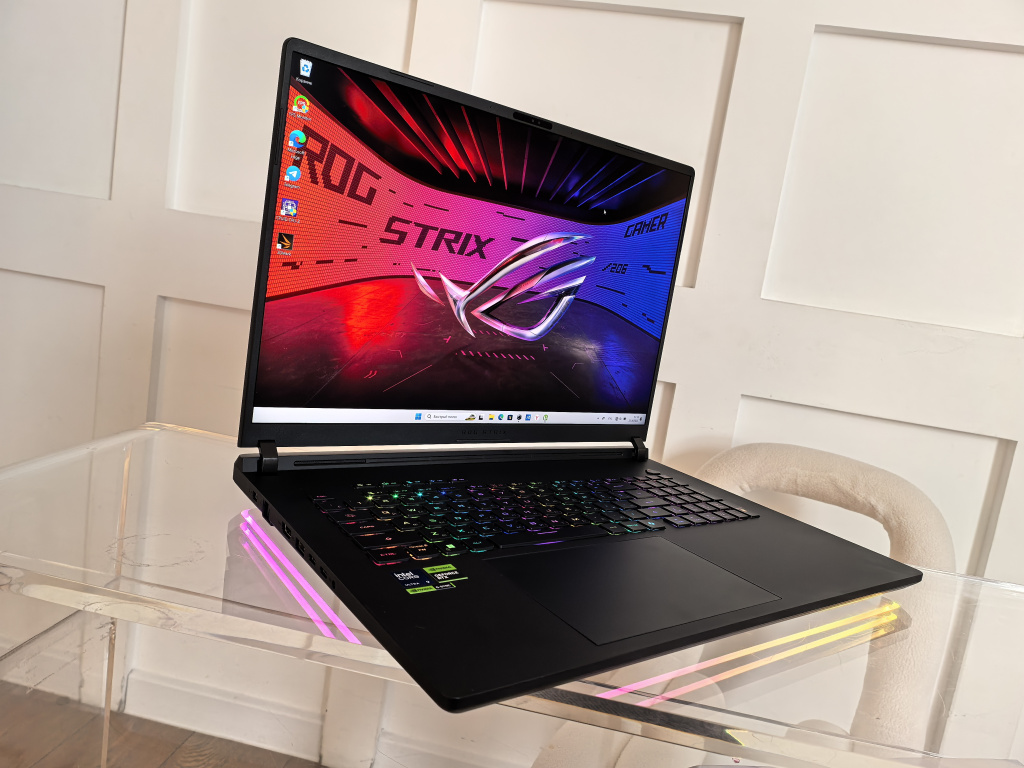
If raw performance per dirham is your priority – particularly for gaming or creative workloads – ASUS is difficult to beat in the UAE market. The ROG (Republic of Gamers) and TUF series consistently pack higher-tier GPUs and faster refresh-rate displays into price brackets where competitors offer less powerful hardware. The ZenBook and VivoBook lines extend that same value proposition to everyday ultrabooks, often with OLED displays at prices below equivalent Dell or HP premium models. For a closer look at current gaming options, check out our ASUS ROG Strix Gaming Laptops UAE Buyer’s Guide or browse gaming laptops directly.

Acer – Best Budget Pick

For the tightest budgets – students, first laptops, or a secondary home device – Acer’s Aspire and Swift series remain the go-to choice in the UAE. They won’t compete with premium brands on build materials or display quality, but for basic productivity, browsing, and online classes, Acer delivers dependable performance at some of the lowest entry prices in the market, backed by a growing UAE retail and support presence.

Apple – Best Long-Term & Resale Value

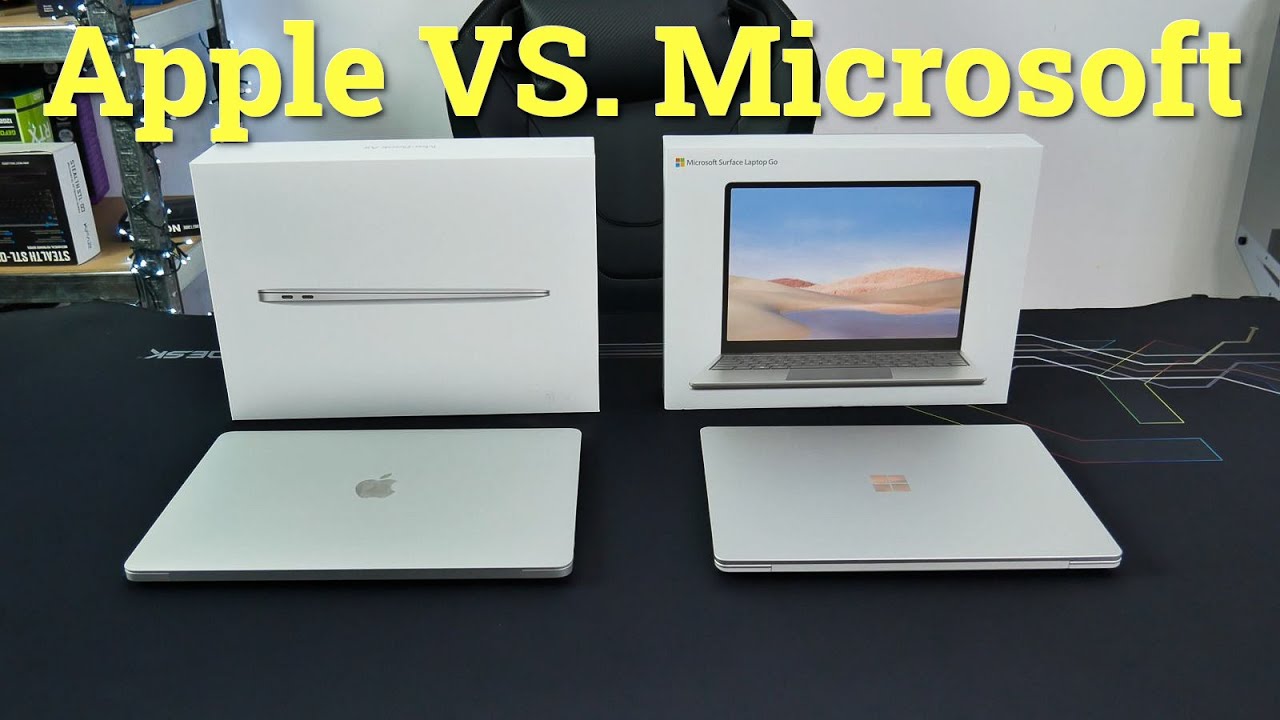
Apple laptops carry a higher upfront price, but “value for money” isn’t only about the purchase price – it’s also about what the device is worth over its lifetime. MacBooks, particularly the MacBook Air, hold their resale value in the UAE better than almost any Windows competitor, thanks to strong demand from the region’s large expat and reseller market. Combined with long software support and consistently smooth performance for years after purchase, Apple often works out cheaper per year of ownership than a budget Windows laptop replaced every two to three years. Explore current MacBook options or compare directly against Windows premium rivals in our Dell XPS vs MacBook Pro showdown and HP Spectre vs Dell XPS comparison.

Best Value Laptop Brand by Use Case in the UAE

Students & Everyday Users

For students across UAE universities and everyday users who mainly need browsing, streaming, and office apps, Lenovo IdeaPad and Acer Aspire models deliver the best balance of price and dependability. Look at our cheap laptops in UAE guide for current budget picks under AED 3,000.

Business Professionals in Dubai

For business use, Dell Latitude/Pro and Lenovo ThinkPad remain the strongest picks thanks to build durability, security features, and UAE-wide service coverage. Browse business laptops in the UAE or consider a Microsoft Surface for a lighter, Copilot-ready alternative.

Gamers & Creators

For gaming and creative workloads, ASUS ROG/TUF and Lenovo Legion offer the strongest GPU-per-dirham ratio currently available in UAE retail. Read our comparison on gaming laptop vs regular laptop differences in the UAE market or check what’s available under AED 6,000 for gaming.

Laptop Price Ranges in the UAE – What You Actually Get

Budget (AED)What to ExpectBest-Value Brands
Under 2,500Basic browsing, office work, entry specsAcer, HP
2,500 – 5,000Solid everyday performance, i5/Ryzen 5, 16GB RAMLenovo, HP, ASUS
5,000 – 9,000Business-grade or gaming-entry laptopsDell, Lenovo, ASUS, Apple (MacBook Air)
9,000 – 15,000+Premium ultrabooks, workstation or high-end gamingDell XPS, ASUS ROG, Apple MacBook Pro, Lenovo ThinkPad/Legion

Where to Buy the Best Value Laptops in Dubai & the UAE

Wherever you buy, confirm three things before checkout: an official UAE warranty (not a grey-market import), VAT-inclusive final pricing, and available EMI or installment options if you’re spreading the cost. Buying from an authorized UAE retailer also means faster local service if something needs repair, rather than shipping a device internationally.

5 Tips to Get the Best Laptop Deal in the UAE

  1. Compare VAT-inclusive prices, not the pre-tax number some listings show.
  2. Check for official UAE warranty, especially on imported or “grey market” units – always confirm coverage before buying.
  3. Time your purchase around seasonal sales (Dubai Shopping Festival, back-to-school, and year-end promotions typically bring the deepest discounts).
  4. Match specs to your actual use case – don’t overpay for a gaming GPU if you only need a machine for browsing and office work.
  5. Ask about installment plans through Tabby, Tamara, or bank EMI to make a higher-value laptop more affordable upfront.

Conclusion

There’s no single “best” laptop brand for every UAE buyer – but if you want the strongest all-round value today, Lenovo is the safest choice across budgets, Dell wins for business reliability, ASUS wins for gaming performance-per-dirham, and Apple wins if resale value and longevity matter most to you.

Whichever brand fits your needs, buy from a retailer that backs it with genuine UAE warranty, transparent pricing, and real local support. At UAE Tech Dubai (BerjayaElectronics), you’ll find official Lenovo, Dell, HP, ASUS, Acer, and Apple laptops at competitive UAE prices, with fast delivery across Dubai and the wider Emirates, flexible EMI options, and dedicated after-sales support. Browse our full laptop collection or explore gaming laptops and business laptops to find the best value laptop for your needs today.

Which laptop brand is the best value for money in the UAE right now? 

Lenovo currently offers the strongest overall value across budget, mid-range, and business laptops in the UAE, though ASUS leads for gaming value and Apple leads for long-term resale value.

Is it cheaper to buy a laptop in Dubai or online? 

Prices are broadly similar between physical stores and UAE-based online retailers, but online retailers often run more frequent promotions and offer wider stock availability with the same official warranty.

Which laptop brand has the best resale value in the UAE? 

Apple MacBooks consistently hold the strongest resale value in the UAE, followed by Dell’s business range for corporate resale.

What is the best budget laptop brand in the UAE? 

Acer and Lenovo’s entry-level ranges (Aspire and IdeaPad) offer the most dependable performance at the lowest UAE price points.

Do UAE laptop retailers offer installment plans? 

Many UAE retailers, including UAE Tech Dubai, support installment payments through Tabby, Tamara, and major UAE bank EMI plans.

ASUS ROG vs MSI Raider: Which Gaming Laptop Should I Buy for Competitive Gaming

ASUS ROG vs MSI Raider: Which Gaming Laptop Should I Buy for Competitive Gaming?

If you’re shopping for a competitive gaming laptop in Dubai or anywhere in the UAE, you’ve almost certainly landed on the same two names everyone else does: ASUS ROG and MSI Raider. Both brands build genuinely excellent hardware, both are widely stocked across the UAE, and both are backed by strong local warranty support – so the “which one is better” debate isn’t really about which brand is bad. It’s about which laptop is right for how you actually play.

We compared the ASUS ROG lineup (Strix and Zephyrus series) against the MSI Raider lineup (including the flagship Raider 18 HX) across the five things that matter most to competitive and esports players: raw performance, display responsiveness, keyboard feel, thermal management under sustained load, and price-to-performance in AED. Here’s the honest breakdown, plus where to buy either one in Dubai with genuine UAE warranty.

Quick Verdict – ASUS ROG or MSI Raider for Competitive Gaming?

If you only read one paragraph, read this one.

Choose ASUS ROG if you play fast-paced, twitch-reflex esports titles like Valorant, CS2, or Apex Legends. The optical-mechanical keyboard and faster panel response time give competitive players a small but real edge, and the cooler palm rest matters during long ranked sessions.

Choose MSI Raider if you want a desktop-replacement powerhouse that also handles heavy multitasking, streaming overlays, and demanding AAA titles at maximum settings without throttling. The Raider’s cooling system is built to sustain peak clock speeds longer under continuous load.

Both brands are excellent – the right pick genuinely depends on your game library and how you use the machine day to day. Below, we break down exactly why.

ASUS ROG vs MSI Raider: Key Specs Compared

FeatureASUS ROG (Strix / Zephyrus)MSI Raider (18 HX / GE78 HX)
Processor optionsIntel Core i9-14900HX / Ryzen 9 series / Core Ultra 9Intel Core i9-14900HX
GPU optionsUp to NVIDIA GeForce RTX 5090 (Strix SCAR 16)Up to NVIDIA GeForce RTX 4090
Display refresh rateUp to 240Hz–360Hz, 3ms response timeUp to 240Hz Mini LED, 3ms response time
KeyboardOptical-mechanical switches, per-key RGBSteelSeries per-key RGB, deeper key travel
CoolingArc Flow fans + Conductonaut liquid metalCooler Boost Titan + Phase Change Thermal Pads
Build materialAluminum/magnesium alloy, aggressive gamer aestheticMagnesium alloy, subtler premium-business look
Best forEsports / competitive FPS playersDesktop-replacement / max-settings AAA gaming
UAE price rangeApprox. AED 4,900 – AED 22,000 depending on configApprox. AED 6,500 – AED 20,000+ depending on config

Performance for Competitive Gaming: CPU, GPU & FPS

Processor and Graphics Power

Both brands use nearly identical top-tier silicon at the high end – an Intel Core i9-14900HX paired with the latest NVIDIA RTX GPUs is common to both. In synthetic benchmarks (Cinebench, 3DMark Time Spy), the difference between a similarly specced ASUS ROG and MSI Raider is typically within a 2–3% margin – not something you’ll feel mid-match. What actually separates the two is how each brand tunes power delivery and sustains those clocks over a 40-minute ranked match, which we cover in the cooling section below.

Frame Rates in Esports Titles

For competitive titles like Valorant, CS2, Fortnite, and Apex Legends, both laptops will comfortably push 300+ FPS at 1080p on high-end configurations. The real differentiator isn’t raw FPS – it’s frame time consistency and display response time, because in competitive gaming, a stable 280 FPS on a fast panel beats an occasionally-spiking 320 FPS on a slower one.

Display & Response Time – Why It Matters for Esports

Refresh Rate and Response Time

This is where ASUS ROG has a slight, measurable edge for esports. Many ROG models ship with a 3ms response time panel tuned specifically for competitive play, alongside refresh rates reaching up to 360Hz on select Zephyrus and Strix models. MSI Raider panels are excellent too, often reaching 240Hz on Mini LED displays, but MSI’s engineering focus leans toward contrast and HDR punch rather than shaving off the last millisecond of latency.

Panel Type and Color Accuracy

If you split your time between ranked matches and story-driven or cinematic games, MSI’s Mini LED panels with VESA DisplayHDR 1000 support are genuinely stunning – deeper blacks, higher peak brightness, and richer color. ASUS panels are excellent for color accuracy out of the box too, which also makes ROG laptops a solid dual-purpose pick if you stream or create content between matches.

Keyboard, Build Quality & Portability

Keyboard Feel for Competitive Play

Competitive players live and die by their keyboard, and this is arguably ASUS ROG’s biggest strength. Its optical-mechanical switches have a sharp, distinct actuation point – the kind of tactile snap that helps with fast strafe-peeks and rapid ability inputs. MSI’s SteelSeries per-key RGB keyboard on the Raider offers deeper, more cushioned key travel, which some players prefer for comfort during marathon sessions, even if it’s a touch less crisp for split-second inputs.

Chassis, Weight & Design Philosophy

ASUS ROG leans into an unapologetically “gamer” aesthetic – angular lines, bold RGB light bars, dense and rugged-feeling chassis. MSI Raider takes a more understated, premium-business-meets-powerhouse approach: cleaner lines, more magnesium alloy, and a subtle light strip instead of a logo-forward design. If you carry your laptop to LAN events or a cafΓ© between classes, MSI’s lower-key look might suit you better; if you want your setup to look like a gaming rig, ASUS wins that round easily.

Cooling & Thermal Throttling During Long Sessions

This matters more than most buyers realize. A laptop that peaks at high FPS in a five-minute benchmark but throttles 20 minutes into a real match isn’t actually the faster machine.

In sustained stress testing, high-end MSI Raider models tend to hold peak CPU and GPU clocks slightly longer under continuous load – roughly 15–20% longer before throttling kicks in – thanks to the Cooler Boost Titan system and phase-change thermal pads. The trade-off is more fan noise under load.

ASUS ROG models, using Arc Flow fans and liquid metal thermal compound, tend to run cooler to the touch on the WASD keys and palm rest – genuinely more comfortable for a two-hour ranked grind – but can throttle a touch earlier to protect surface temperatures.

Bottom line: if absolute sustained performance is your top priority, MSI Raider has a slight edge. If hand comfort during long sessions matters more, ASUS ROG wins.

Price in the UAE: ASUS ROG vs MSI Raider (AED Comparison)

Gaming laptop pricing in Dubai fluctuates with GPU generation, promotions, and shopping seasons like the Dubai Shopping Festival, but as a general guide:

  • ASUS ROG models start around AED 4,900 for a mid-tier Strix G16 configuration and climb toward AED 22,000 for a flagship ASUS ROG Strix SCAR 16 with an RTX 5090.
  • MSI Raider models, including the flagship MSI Raider 18 HX with an RTX 4090, typically sit in a similar premium bracket, with mid-tier Raider configurations available at a lower entry point.

Because both brands span budget-to-flagship tiers, the smarter comparison isn’t “which brand is cheaper” – it’s which specific model, at your budget, gives you the GPU tier and refresh rate your games actually need. For a broader breakdown of pricing tiers in the UAE, our guide on gaming laptops under AED 6,000 is a useful starting point if you’re on a tighter budget.

Which One Should You Buy?

Choose ASUS ROG If:

  • You mainly play fast-paced esports titles (Valorant, CS2, Overwatch 2) where response time and keyboard feel matter most
  • You want a cooler palm rest and keyboard during long ranked sessions
  • You want strong built-in speakers and a more feature-rich control suite (Armoury Crate)
  • You’re shopping mid-range and want the best performance-per-dirham – browse the full ASUS ROG Strix range for UAE gamers for model-by-model detail

Choose MSI Raider If:

  • You want a desktop-replacement machine that holds peak performance longest under sustained load
  • You play a mix of competitive titles and max-settings AAA games or do content creation between matches
  • You prefer a more understated, premium chassis
  • You want a brighter, richer Mini LED display for both gaming and movies

Not sure a full-size gaming laptop is even the right category for you versus a lighter everyday machine? Our comparison of gaming laptops vs regular laptops in the UAE market breaks down that decision too.

Where to Buy ASUS ROG & MSI Raider Gaming Laptops in Dubai, UAE

Buying a gaming laptop locally in the UAE – rather than importing or buying grey-market stock – matters for three reasons: genuine manufacturer warranty, fast local delivery, and after-sales support if something goes wrong mid-tournament season.

At UAE Tech Dubai (Berjaya Electronics), we stock both flagship ASUS ROG and MSI Raider configurations with full UAE warranty, fast delivery across Dubai, Abu Dhabi, Sharjah, and the rest of the Emirates, and secure payment options. You can browse the complete range directly:

Also pair your new gaming laptop with the right peripherals for competitive play – check our gaming mouse,gaming keyboards, and gaming headsets collections for setups that match your new rig.

Conclusion

There’s no single “winner” here – there’s the right tool for your specific playstyle. If competitive FPS titles and keyboard feel are your priority, go with ASUS ROG. If you want a machine that maximizes every frame during long, demanding sessions without breaking a sweat, the MSI Raider is phenomenal.

Whichever direction you choose, buy from a retailer that backs it with genuine UAE warranty and real local support. Browse the full range of ASUS ROG and MSI Raider gaming laptops at UAE Tech Dubai (Berjaya Electronics), or get in touch with our team for personalized advice on which configuration fits your budget and your game library.

Is ASUS ROG better than MSI Raider for competitive gaming? 

For pure competitive esports (Valorant, CS2), ASUS ROG has a slight edge thanks to its optical-mechanical keyboard and faster-response displays. For sustained max-performance gaming and multitasking, MSI Raider is the stronger pick.

Which is more expensive in the UAE, ASUS ROG or MSI Raider? 

Both brands span a wide price range from mid-tier to flagship. Entry ASUS ROG models start lower, while flagship configurations of both brands land in a similar premium price bracket in Dubai.

Do ASUS ROG and MSI Raider laptops come with UAE warranty? 

Yes – when purchased through an authorized UAE retailer like UAE Tech Dubai, both brands come with genuine manufacturer warranty valid across the Emirates.

Which laptop has better cooling, ASUS ROG or MSI Raider? 

MSI Raider’s high-end models sustain peak clock speeds slightly longer under continuous load. ASUS ROG runs cooler to the touch on the keyboard and palm rest, prioritizing comfort during long sessions.

Can I game on either laptop for esports tournaments at 240Hz or higher? 

Yes. Both ASUS ROG and MSI Raider offer configurations with refresh rates up to 240Hz–360Hz and 3ms response times, more than capable of competitive tournament-level play.

Best Gaming Laptop to Buy in Dubai Under AED 6000

What Is the Best Gaming Laptop to Buy in Dubai Under AED 6000?

If you’re searching for the best gaming laptop under AED 6000 in Dubai, you already know the problem: the UAE market is flooded with options, half of them “gaming” in name only, and prices swing wildly between stores. This guide cuts through that. We tested spec sheets and real-world pricing across Dubai’s leading retailers, benchmarked what AED 6000 actually buys you in 2026, and shortlisted only the laptops that deliver genuine RTX-class gaming performance – not integrated graphics dressed up in RGB lighting.

Whether you’re gaming casually after work, grinding Valorant and Fortnite ranked matches, or looking for your first serious rig as a student in Dubai or Abu Dhabi, this guide will help you buy with confidence.

What to Look for in a Gaming Laptop Under AED 6000 in the UAE

Not every laptop labeled “gaming” earns the title. Before comparing specific models, it helps to understand what actually separates a real gaming laptop from a regular laptop with a sticker on it – especially at this budget, where corners get cut fast.

Graphics Card (GPU)

The GPU is the single biggest factor in gaming performance. At the AED 6000 price point in Dubai, you should be targeting an NVIDIA GeForce RTX 4050, RTX 5050, or RTX 5060. These cards handle 1080p gaming at high settings comfortably, and the RTX 5060 in particular supports DLSS 4 for smoother frame rates in newer titles. Avoid laptops that only list “integrated graphics” or “AMD Radeon Graphics” (non-RX) as their GPU – they’ll struggle with anything beyond esports titles like CS2 or Valorant.

Processor (CPU)

Pair your GPU with a CPU that won’t bottleneck it. Intel Core i7/Core Ultra 7 or AMD Ryzen 7 processors are the sweet spot under this budget – enough multi-core performance for gaming, streaming, and everyday multitasking without overheating under sustained load.

RAM & Storage

16GB RAM is the practical minimum for modern AAA titles in 2026; 32GB (increasingly common even at this budget) gives you real headroom for background apps, Discord, and browser tabs while gaming. For storage, look for at least a 512GB NVMe SSD – 1TB is ideal if you install multiple large titles like Call of Duty or GTA VI.

Display & Refresh Rate

A 1080p or 3K display with a 120Hz+ refresh rate noticeably improves competitive gaming, making motion smoother and giving you a real edge in fast-paced shooters. Standard 60Hz panels feel dated by comparison.

Cooling System – Critical for Dubai’s Climate

This is the point most generic buying guides miss, and it matters more in the UAE than almost anywhere else. Dubai’s ambient heat – especially with summer temperatures pushing 45Β°C – puts extra strain on a laptop’s thermal system. A gaming laptop with weak cooling will throttle performance mid-session once internal temperatures spike. Prioritize models with dual-fan setups, vapor chamber cooling, or multiple heat pipes, and always keep the laptop on a hard, ventilated surface rather than a bed or sofa when gaming indoors with AC running.

Best Gaming Laptops Under AED 6000 in Dubai (2026)

Based on current UAE pricing, in-stock availability, and genuine gaming-grade specifications, here are the three best options under AED 6000 in Dubai right now.

Best Overall – HP OMEN Transcend 14

Price: AED 5,899

The HP OMEN Transcend 14-fb1013dx is, spec-for-spec, the strongest gaming laptop available under AED 6000 in the UAE. It’s built around an Intel Core Ultra 7 255H processor, an NVIDIA GeForce RTX 5060 8GB GPU, 32GB of RAM, and a 1TB NVMe SSD – a configuration that would typically sit closer to the AED 8,000–9,000 range from other brands. The standout feature is its 14″ 3K OLED display, which delivers punchy contrast and vivid color that most budget gaming laptops simply can’t match.

Why it’s our top pick:

  • RTX 5060 handles 1080p and even 1440p gaming at high settings
  • 32GB RAM future-proofs it well beyond most laptops at this price
  • OLED display is a genuine step above competitors in this bracket
  • Compact 14″ chassis is easier to carry around Dubai and Abu Dhabi than bulkier 16″–18″ rigs

Trade-off: the 14″ size means a slightly smaller keyboard deck than 15.6″/16″ alternatives – worth trying in person if you have larger hands.

Best Budget Pick – Acer Predator Helios Neo 16

Price: AED 4,750

If you want to stay well under budget while still getting real RTX-class performance, the Acer Predator Helios Neo 16 is the smartest value buy in Dubai’s gaming laptop market. It runs an Intel Core i7-13700HX, NVIDIA RTX 4050 6GB, 16GB RAM, and a 512GB SSD on a spacious 16″ WUXGA display – all for under AED 5,000.

Why it’s a top pick:

  • Nearly AED 1,150 cheaper than our top overall pick, leaving budget for a gaming mouse or headset
  • Acer’s IceStorm cooling copes well with extended sessions in Dubai’s heat
  • 16″ screen is more comfortable for long gaming sessions than a 14″ panel
  • Genuine RTX 4050 GPU, not a rebadged integrated chip

Trade-off: 512GB SSD fills up quickly with modern AAA titles – plan to manage storage or add an external drive.

Best for Study + Light Gaming – Dell 16 Plus DB16255

Price: AED 5,950

For buyers who need a machine that handles university coursework, office apps, and casual gaming equally well, the Dell 16 Plus DB16255 is worth a look. It pairs an AMD Ryzen AI 7 350 processor with 32GB RAM, a 1TB SSD, and a 16″ FHD+ touch display.

Important honesty note: this model uses AMD Radeon integrated graphics, not a dedicated RTX GPU. That means it will run esports titles like Valorant, CS2, and older games smoothly, but it is not the right choice for demanding AAA titles at high settings. Choose this only if gaming is secondary to productivity, and pick one of the two models above if gaming performance is your priority.

Quick Comparison Table

LaptopPrice (AED)CPUGPURAMStorageDisplay
HP OMEN Transcend 145,899Intel Core Ultra 7 255HRTX 5060 8GB32GB1TB SSD14″ 3K OLED
Acer Predator Helios Neo 164,750Intel Core i7-13700HXRTX 4050 6GB16GB512GB SSD16″ WUXGA
Dell 16 Plus DB162555,950AMD Ryzen AI 7 350AMD Radeon (integrated)32GB1TB SSD16″ FHD+ Touch

Gaming Laptop vs Regular Laptop – Why It Matters Under This Budget

At around AED 6000, the gap between a true gaming laptop and a regular laptop marketed to gamers is bigger than it looks on a spec sheet. A regular laptop with a decent CPU can feel fast for browsing and office work, but without a dedicated NVIDIA or AMD discrete GPU, it will bottleneck hard the moment you launch a modern title. If you want a deeper breakdown of exactly where the two diverge – thermals, upgradeability, and long-term value – see our full comparison: Gaming Laptop vs Regular Laptop – What’s The Difference in the UAE Market?

If your budget stretches a little further down the line, it’s also worth knowing what the next tier looks like – our ASUS ROG Strix Gaming Laptops UAE Buyer’s Guide covers the step-up models once you’re ready to spend above AED 10,000.

Where to Buy Gaming Laptops Under AED 6000 in Dubai

All three laptops above – and more than 620 other gaming laptops across every major budget – are in stock at UAE Tech Dubai (Berjaya Electronics), one of Dubai’s most trusted electronics retailers. Here’s why gamers across the UAE buy from us:

  • 100% authentic, warranty-backed stock – every unit ships with an official manufacturer’s warranty, never grey-market
  • Same-day and next-day delivery in Dubai, with shipping across Abu Dhabi, Sharjah, Ajman, Fujairah, Ras Al Khaimah, and Umm Al Quwain
  • International shipping to Qatar, Bahrain, Oman, Kuwait, and Saudi Arabia
  • Flexible payment options and honest, spec-based advice from our support team – call or WhatsApp +971 50 652 0580

Browse the full range on our Gaming Laptops in UAE category page, filterable by brand, GPU, and price. Once your laptop arrives, complete the setup with a proper gaming mouse, a mechanical gaming keyboard, or a gaming headset – all in stock for fast Dubai delivery. And if you eventually want a dedicated rig for your desk at home, check out our Gaming PC collection too.

Conclusion – Which One Should You Buy?

If you want the strongest all-round gaming performance under AED 6000 in Dubai, the HP OMEN Transcend 14 (AED 5,899) is the clear winner – its RTX 5060 GPU and 32GB RAM outclass almost everything else at this price. If you’d rather save close to AED 1,150 and still get genuine RTX gaming power, the Acer Predator Helios Neo 16 (AED 4,750) is an excellent budget alternative with a larger screen. Only consider the Dell 16 Plus DB16255 if gaming is secondary to study or work.

Whichever you choose, buy from a retailer that backs it with a real manufacturer warranty and fast UAE delivery. Browse the full collection and order online at UAE Tech Dubai (Berjaya Electronics).

What is the best gaming laptop under AED 6000 in Dubai? 

The HP OMEN Transcend 14, priced at AED 5,899, is currently the best gaming laptop under AED 6000 in Dubai. It offers an RTX 5060 GPU, 32GB RAM, and a 14″ 3K OLED display – specs that punch well above its price point.

Can I play GTA and Call of Duty on a laptop under AED 6000? 

Yes. A laptop with an RTX 4050 or RTX 5060 GPU, like the two RTX-equipped models in this guide, will run modern AAA titles like GTA V/VI and Call of Duty at 1080p on medium-to-high settings comfortably.

Is 16GB RAM enough for gaming in 2026? 

16GB is the practical minimum for most current titles. If your budget allows, 32GB (available on both our top pick and the Dell 16 Plus) gives more headroom for streaming, Discord, and background apps while gaming.

Do gaming laptops overheat in Dubai’s climate? 

They can, if cooling is weak. Laptops with dual-fan systems and vapor chamber or multi-heat-pipe cooling – like the models recommended above – are built to handle sustained gaming sessions even in warm ambient conditions. Using the laptop on a hard, ventilated surface also helps significantly.

Where can I buy a gaming laptop under AED 6000 with warranty in the UAE? 

UAE Tech Dubai (Berjaya Electronics) stocks 100% authentic, manufacturer-warranty-backed gaming laptops under AED 6000, with same-day delivery available across Dubai and shipping throughout the UAE and GCC.

Is an integrated graphics laptop good enough for gaming? 

Integrated graphics, like the AMD Radeon graphics on the Dell 16 Plus, can handle light esports titles (Valorant, CS2) but will struggle with demanding AAA games. For serious gaming under this budget, choose a laptop with a dedicated RTX GPU.

Product has been added to your cart