
How to Install Memory in a Laptop: Step-by-Step RAM Upgrade Guide (UAE & Dubai)
If your laptop has started lagging when you open too many browser tabs, run Excel alongside Zoom, or edit photos and videos, the fix is often simpler than buying a new machine. Installing memory (RAM) in a laptop is one of the fastest, most affordable upgrades you can make, and in most cases it takes less than 15 minutes with no technical background required. This guide walks you through the entire process – from checking compatibility to fitting the new module – with tips specific to shoppers in Dubai and across the UAE.
Why Upgrade Your Laptop’s RAM?
RAM (Random Access Memory) is your laptop’s short-term workspace. The more RAM you have, the more programs and browser tabs your system can juggle without slowing down. Upgrading RAM is usually cheaper than replacing a processor or buying a new laptop, and it delivers a noticeable, immediate speed boost for multitasking, video calls, gaming, and creative work like editing or rendering.
Signs Your Laptop Needs a Memory Upgrade
Before opening your laptop, look for these common symptoms of low memory:
- Programs freeze or take longer to load than usual
- Your laptop struggles when multiple apps or browser tabs are open
- Task Manager or Activity Monitor shows RAM usage constantly near 90–100%
- The system relies heavily on the hard drive/SSD as “virtual memory,” making everything feel sluggish
If any of these sound familiar, a memory upgrade is worth doing before you spend money on a new device.
Things to Check Before You Buy Laptop RAM
RAM Type – DDR4 vs DDR5
Laptops use small memory modules called SO-DIMMs, available mainly in DDR4 and DDR5 standards. These are not interchangeable – a DDR5 slot will not accept DDR4 memory. Check your laptop’s specification sheet, or use a free tool like CPU-Z, to confirm which type your model supports before ordering.
Maximum Supported Capacity
Every laptop motherboard has a memory ceiling – commonly 16GB, 32GB, or 64GB. Installing more than your system supports won’t work, so confirm the maximum capacity in your manufacturer’s documentation first.
Single Channel vs Dual Channel
Most laptops have two RAM slots. Installing two matching modules (for example, two 8GB sticks instead of one 16GB stick) enables dual-channel mode, which noticeably improves performance for gaming and multitasking.
Tools You’ll Need
- A new RAM module (correct type, speed, and capacity for your laptop)
- A small Phillips-head screwdriver
- A clean, flat, static-free work surface
- An anti-static wrist strap (optional, but recommended)
How to Install Memory in a Laptop (Step-by-Step)
Step 1 – Power Down and Prepare
Shut down your laptop completely and unplug the charger. If your laptop has a removable battery, take it out. Press and hold the power button for 10 seconds to discharge any residual electricity, then touch an unpainted metal surface to ground yourself and prevent static damage to the components.
Step 2 – Open the Memory Compartment
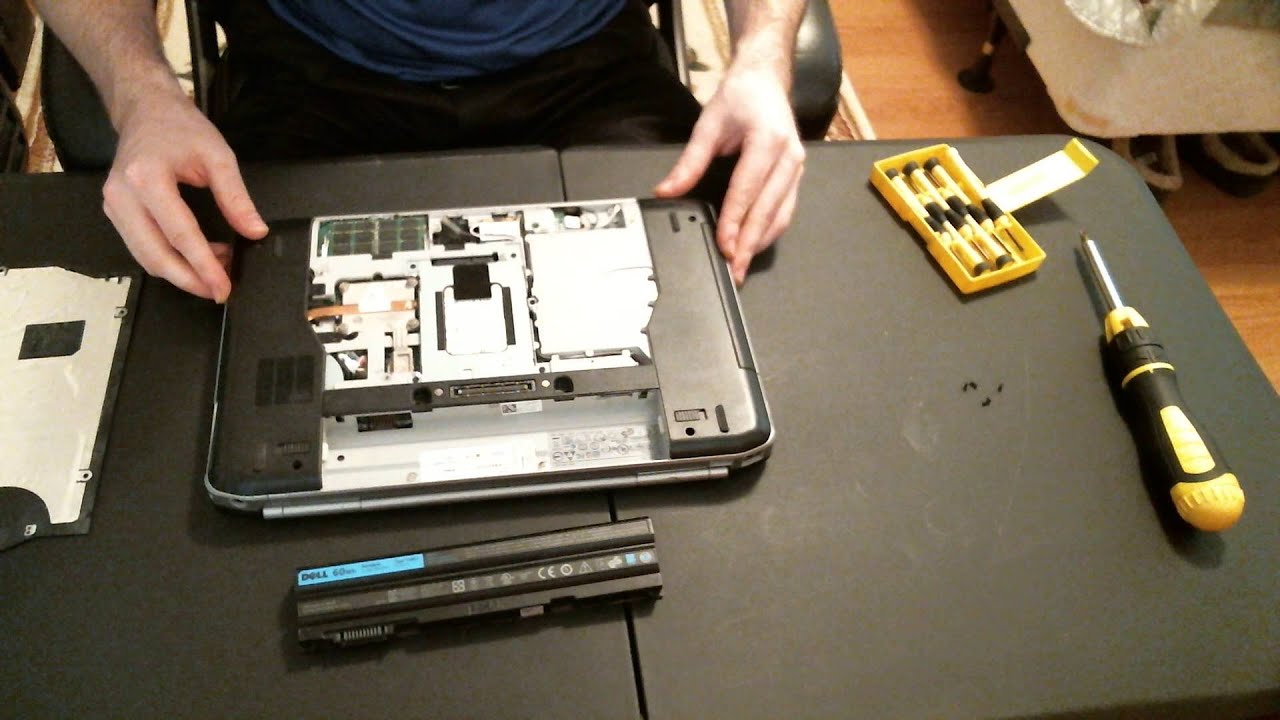
Flip the laptop over and locate the memory access panel, usually secured with a few small screws on the underside. Some ultrabooks require removing the entire base cover instead of a dedicated panel – check your model’s manual if you’re unsure.
Step 3 – Remove the Old Module (If Replacing)
If you’re replacing existing RAM rather than adding to an empty slot, gently push the small retaining clips on either side of the module outward. The RAM will pop up at a 30-degree angle – pull it out carefully by the edges, avoiding contact with the gold connectors.
Step 4 – Insert the New RAM Module
Align the notch on the new module with the notch in the slot – it only fits one way. Insert it at roughly a 30-degree angle, then press down firmly and evenly until the side clips click into place and the module lies flat.
Step 5 – Reassemble and Power On
Replace the access panel, reinsert the battery if removed, and reconnect the charger. Turn the laptop on – it should boot normally, with no beeps or errors.
How to Verify the New RAM Is Installed Correctly
Once your laptop boots, confirm the new memory is recognized:
- Windows: Right-click the Start menu → Task Manager → Performance tab → Memory, or search “System Information.”
- macOS: Click the Apple logo → About This Mac.
If the total RAM doesn’t match what you installed, power down and reseat the module – it’s usually a seating issue, not a defective part.
Common Installation Issues and Fixes
| Problem | Likely Cause | Fix |
| Laptop won’t turn on | Module not fully seated | Reopen the panel and press down firmly until clips lock |
| RAM not detected | Wrong RAM type or speed | Confirm DDR4 vs DDR5 and speed rating match your laptop |
| System still slow | RAM installed in wrong slot | Check the motherboard manual for the recommended primary slot |
| Laptop overheats after upgrade | Poor airflow, unrelated to RAM | Read our guide on laptop overheating |
Where to Buy Genuine Laptop RAM in Dubai & the UAE
Buying the correct, genuine memory module is the most important part of this entire process – mismatched or counterfeit RAM is the number one cause of failed upgrades. UAE Tech Dubai (Berjaya Electronics) stocks genuine, warranty-backed laptop memory in Dubai from trusted brands, with fast delivery across Dubai, Abu Dhabi, Sharjah, and the wider UAE.
Gamers and creative professionals commonly choose the Kingston 32GB DDR5-5600 SODIMM, while everyday multitaskers and business users often prefer the Dell 16GB DDR5-5600 SODIMM.
If you’re upgrading a work machine, it’s worth pairing extra memory with a laptop built for heavier workloads, such as one of our business laptops, or if gaming performance is the goal, one of our gaming laptops, many of which support easy RAM upgrades out of the box.
Not sure which module fits your exact model? Get in touch with our Dubai support team to confirm compatibility before you order.
Conclusion
Installing memory in a laptop is one of the simplest, most cost-effective upgrades available, and it can add years of usable life to a machine that’s started to feel slow. The key steps are straightforward: confirm your RAM type and maximum capacity, power down safely, fit the module correctly, and verify it in your system settings.
If you’re in Dubai or anywhere in the UAE and want a hassle-free upgrade, UAE Tech Dubai (Berjaya Electronics) offers genuine, warranty-backed laptop RAM with fast local delivery and expert guidance to make sure you order the right module the first time, giving your laptop the performance boost it deserves.
Can I install RAM myself, or do I need a technician?
Most laptops are designed for user-serviceable memory upgrades, and the process takes under 15 minutes. If your laptop has RAM soldered to the motherboard (common on some ultra-thin models), upgrading isn’t possible – check your specs first.
Do I need to reinstall Windows after adding RAM?
No. Your operating system automatically detects and uses new memory without reinstallation or activation.
Can I mix different RAM brands or speeds?
It’s technically possible, but not recommended. Mismatched modules run at the speed of the slowest stick and can cause instability. For best results, use matching modules of the same brand, capacity, and speed.
How much RAM do I actually need?
8GB is the minimum for basic browsing and office work, 16GB comfortably handles multitasking and light creative work, and 32GB or more suits gaming, video editing, and professional workloads.