
Dell Latitude 7350 Accessories Guide: Best Docks, Pens and Cases for UAE Buyers
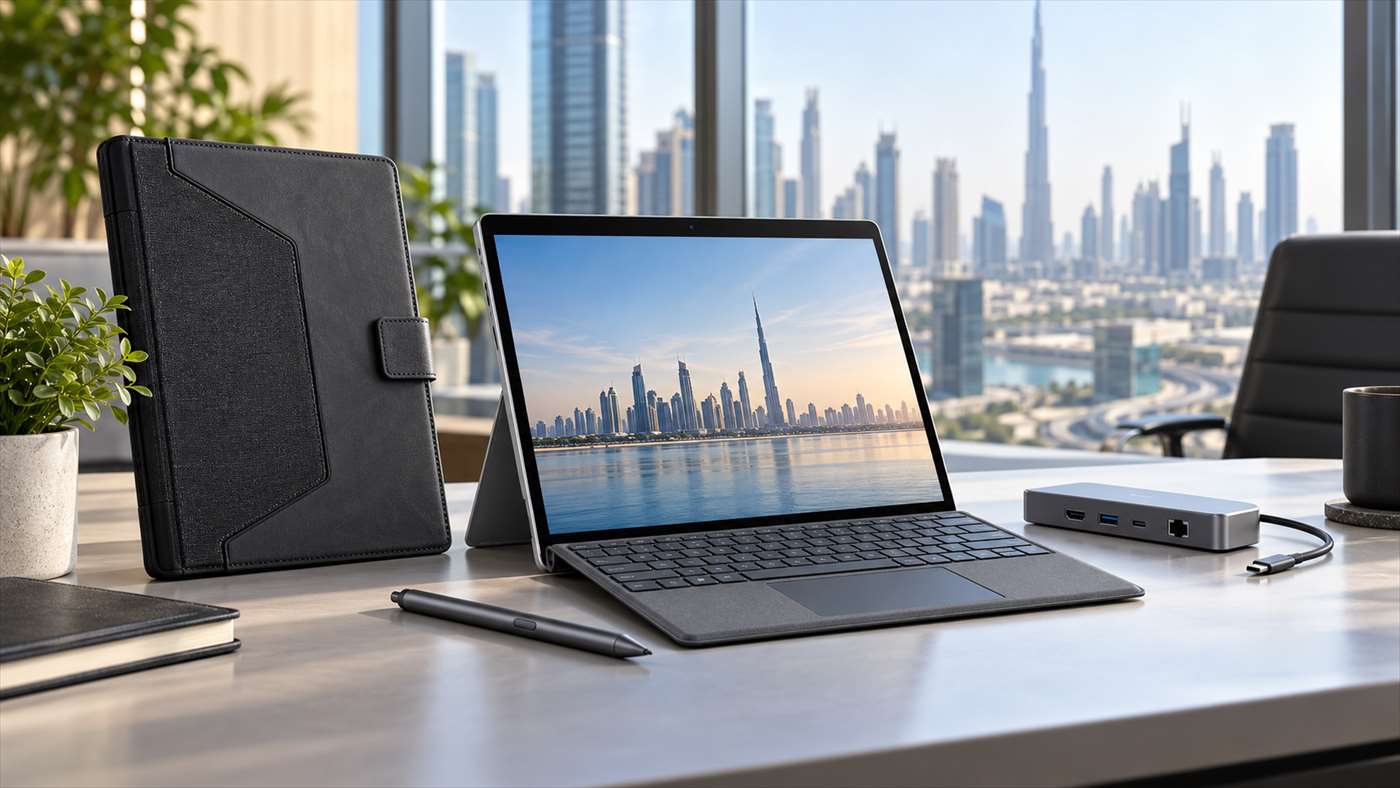
Compare Dell Latitude 7350 accessories for UAE buyers: USB-C and Thunderbolt docks, the PN7350A active pen, and fit-specific cases for Detachable and laptop models.
Compare Dell Latitude 7350 accessories for UAE buyers: USB-C and Thunderbolt docks, the PN7350A active pen, and fit-specific cases for Detachable and laptop models.
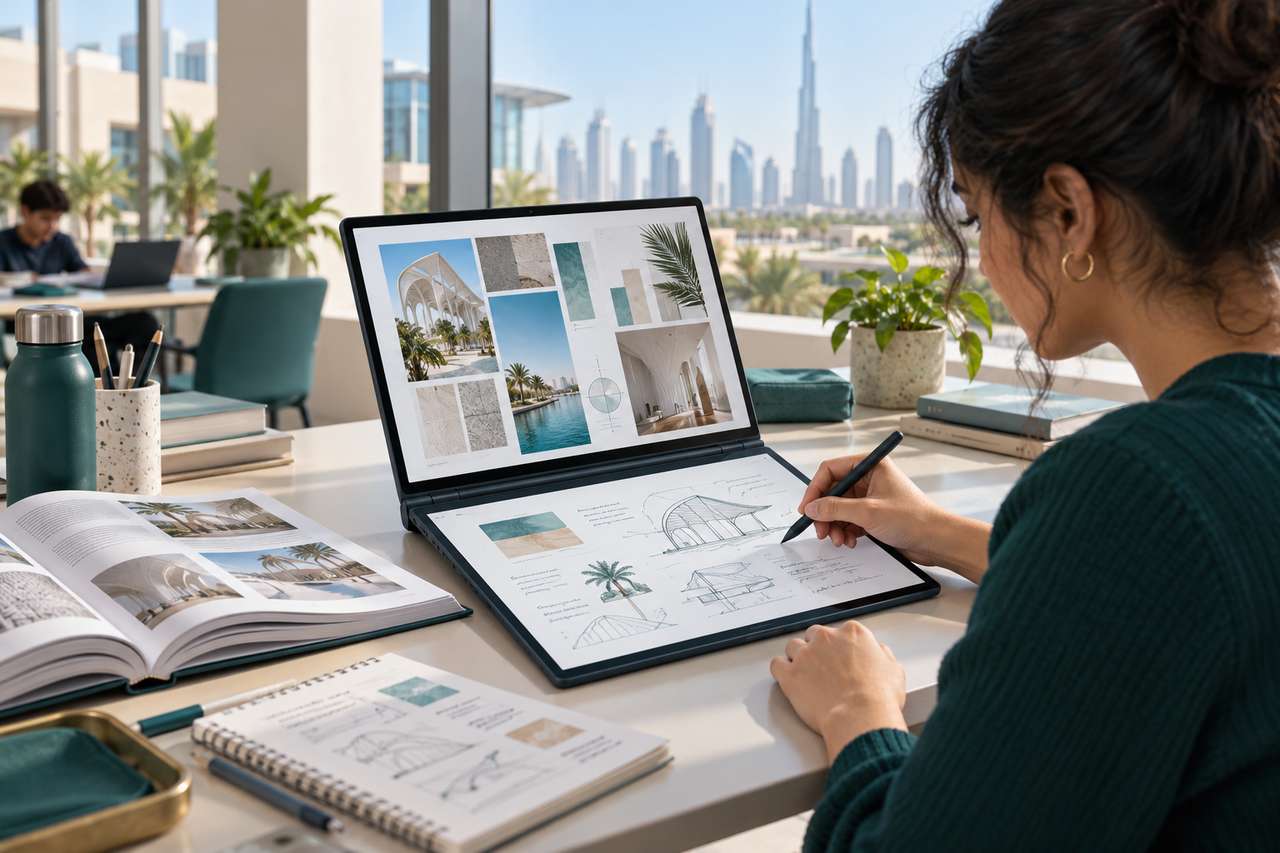
Lenovo Yoga Book 9 for students who move between lectures, research and handwritten notes offers a different approach to a standard laptop: two touch OLED screens, a rechargeable Yoga Pen and a separate Bluetooth keyboard. That extra workspace is useful for reading and writing side by side, though the second screen affects battery life and requires some adjustment.
This guide looks at the UAE Tech Dubai-listed Lenovo Yoga Book 9 14IAH10 (83KJ0001US), with Intel Core Ultra 7 255H, 32GB memory and 1TB SSD. It is a practical buying guide based on the listed configuration, Lenovo’s published specifications and independent reviews; it is not a claim that UAE Tech Dubai ran its own battery or performance tests.
These are the specifications for the 14IAH10 family and the configuration listed in the UAE Tech Dubai Lenovo Yoga Book 9 product page. Lenovo’s PSREF notes that configurations and battery results can vary by region and usage.
Each screen is a 14-inch 2.8K OLED touchscreen with a 16:10 aspect ratio, a maximum 120Hz refresh rate and specified 100% DCI-P3 colour coverage. In book mode, keep lecture slides, a browser or an e-book on the upper panel while placing notes, a document or a reference image below. In notebook mode, the screens can be extended as a larger vertical workspace.
That split can reduce constant app switching during research: read a brief on one display, draft on the other, and use touch or the pen to mark up material. Lenovo’s User Center also supports window transfer and cross-screen browsing. For the setup steps, see our Lenovo Yoga Book 9 dual-screen modes and productivity guide.
There is a learning curve. A two-panel layout is most useful at a desk, library table or study space where the included stand and keyboard can be positioned comfortably. For quick typing on a crowded lecture-room desk, a regular laptop with a built-in keyboard and touchpad may feel simpler.
The Yoga Pen is more than a finger-operated stylus: Lenovo specifies 4,096 pressure levels and tilt detection, which can make handwritten notes, PDF markups, diagrams and rough sketches feel more natural in compatible apps. Students can keep a reading or lecture window open while writing on the second display. Designers can sketch ideas, annotate mock-ups or collect visual references without carrying a separate tablet.
The 14IAH10 specification sheet describes the pen as rechargeable. The UAE Tech Dubai listing for this configuration lists the Yoga Pen and Bluetooth keyboard; check the product page and box contents for the exact package before ordering, since regional bundles can differ. The keyboard is separate and wireless, and the PSREF lists no physical touchpad. You can use the on-screen touchpad or add a mouse if your workflow depends on pointer control.
The Core Ultra 7 255H and 32GB of memory are a strong fit for everyday study and office work: research with many browser tabs, presentations, spreadsheets, video calls, programming coursework and creative applications. The 1TB SSD leaves room for class files, project assets and a local photo library.
For design, the dual OLED panels and their wide specified colour gamut are useful for reviewing layouts, references and images. The integrated Arc 140T graphics can handle general creative work and lighter GPU tasks, but this is not a workstation with a discrete graphics processor. If your course or studio relies on demanding 3D rendering, large simulations or GPU-heavy professional effects, compare it with a laptop built around a discrete GPU before buying.
Memory is soldered, so choose the capacity you expect to need over the laptop’s lifetime. The listed 32GB configuration is generous for multitasking, but it cannot be upgraded later.
The 88Wh battery is sizeable for a 14-inch device, but both OLED panels use power when active. Lenovo’s published maximum figures for the 14IAH10 are up to 9.95 hours in dual-screen book mode on MobileMark 30 at 250 nits, or up to 11.4 hours of local 1080p video playback at 150 nits. Lenovo also lists higher results in single-screen notebook mode. These are controlled benchmark or playback conditions, not a promise of a full day of mixed study or design work.
Independent results give a more grounded picture. Notebookcheck recorded about 6 hours 7 minutes in its Wi-Fi browsing test with both screens active on a Core Ultra 7 255H review unit. Tom’s Hardware measured 6 hours 49 minutes in its own mixed browsing, video and graphics battery test at 150 nits. Their protocols differ from Lenovo’s tests, so the figures are not direct comparisons, but they show why a dual-screen workflow can run shorter than the manufacturer’s maximum rating.
For longer campus days in Dubai, use one screen when you do not need both, lower brightness to a comfortable level, and carry a compatible USB-C charger if you expect extended note-taking, video calls or creative work. Actual runtime changes with brightness, refresh rate, apps, wireless use and power settings.
Its appeal is the way it changes the workspace: two OLED panels and pen input in a portable device. The trade-offs are equally clear—battery life depends heavily on how many screens are lit, there is no physical touchpad, and the RAM is fixed. If that balance suits your classes or design workflow, check the Lenovo Yoga Book 9 14IAH10 price, stock and delivery details in the UAE before ordering.
Is the Lenovo Yoga Book 9 good for university students?
It can suit students who read, research and write at the same time, especially when handwritten notes or PDF markup are part of their routine. It is less convenient if you mainly need a traditional laptop posture for fast typing in small spaces.
Does the Lenovo Yoga Book 9 include a pen?
The UAE Tech Dubai listing for the 83KJ0001US configuration lists the Lenovo Yoga Pen and a Bluetooth keyboard. Confirm the exact included accessories and regional warranty on the product page before purchase.
How long does the Yoga Book 9 battery last?
Lenovo lists up to 9.95 hours in a dual-screen MobileMark test and 11.4 hours of local 1080p video playback under specified conditions. Independent Wi-Fi and mixed-use tests have reported around six to seven hours, depending on the test and configuration. Your results will vary with brightness, apps and screen use.
Can the Yoga Book 9 replace a drawing tablet?
It can be convenient for handwritten notes, annotations, concept sketches and lighter illustration tasks. Artists who need a specialised pen display, extensive shortcut controls or dedicated graphics for complex projects may prefer a dedicated tablet or a workstation laptop.
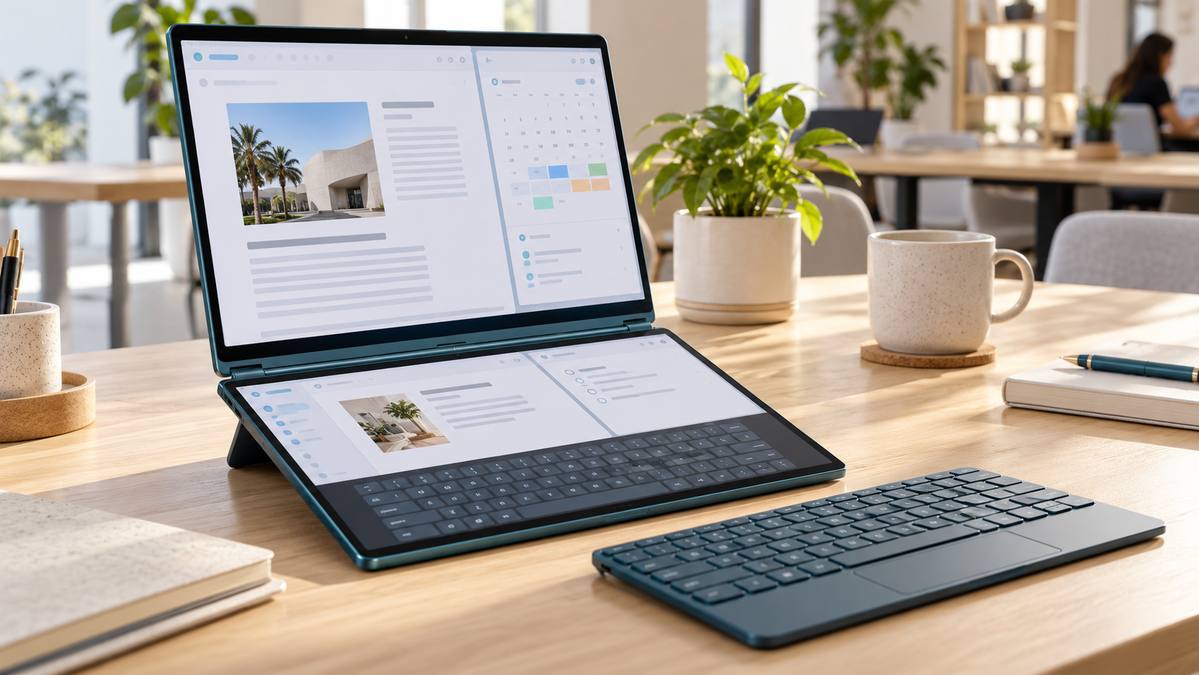
To get the most from Lenovo Yoga Book 9 dual screens, set them up as separate Windows displays: keep one app on each panel, move windows with Lenovo’s transfer controls, and choose the physical setup that fits the task. This guide covers the current 14IAH10, with two 14-inch 2.8K OLED touchscreens. Menu labels can change after software updates, so install current Lenovo support updates if your controls look different.
For most work, set the displays to Extend so each screen has its own desktop. In Windows, open Settings → System → Display and choose “Extend these displays.” You can also press Windows + P and select Extend. If the screens are set to Duplicate, both panels mirror the same content and some Yoga Book features—including the virtual keyboard—are unavailable.
Next, open Lenovo User Center from Windows Search. On the supplied Bluetooth keyboard or Lenovo virtual keyboard, F12 is the User Center hotkey. This app controls the window-transfer assistant, cross-screen browsing, virtual keyboard and touchpad triggers, dual-screen wallpaper, and separate brightness levels. For the 14IAH10, Lenovo also provides YogaBook9 Solutions for Windows 11; keep Lenovo software and Windows up to date.
In the familiar stacked-screen position, place the Bluetooth keyboard on the lower display when you need a conventional typing posture. Keep email, a video call, or a reference document on the upper screen while you write on the lower one. Without the physical keyboard, the lower panel can show Lenovo’s virtual keyboard and floating touchpad. The virtual keyboard has traditional, floating, and mini layouts, so choose the traditional layout for longer typing and a movable layout for short replies.
Turn the device into a side-by-side reading setup with the supported folio arrangement. This works well for comparing a brief with a spreadsheet, reading a PDF while taking notes, or keeping a browser beside a writing app. When enabled in User Center, cross-screen browsing can extend a supported webpage or document across both panels. Lenovo notes that some apps do not support this feature, so use two separate windows if a page splits awkwardly.
The Yoga Book 9 14IAH10 supports two Smart Folio stand arrangements: one for notebook or book positioning with the Bluetooth keyboard, and another for notebook positioning when you prefer the virtual keyboard. Check the exact product listing for the accessories included with your UAE configuration. A stand setup is useful for a video call or presentation; use a paired Bluetooth keyboard when you need to take notes. Lenovo says cross-screen browsing is available in notebook and book modes, not stand or tablet mode.
If an app will not move or span both panels, first confirm that Windows is using Extend, then check that the relevant option is enabled in User Center. Cross-screen browsing is limited to notebook and book mode, and individual apps may not support it. If the virtual touchpad or keyboard does not appear, enable its trigger in User Center or use the system-tray control. Lenovo’s Yoga Book 9 14IAH10 User Guide has model-specific steps and troubleshooting notes.
The dual-screen design is most useful if your day involves comparing information, writing while researching, or keeping a meeting and notes visible together. The key is to set Windows to Extend, learn the F12 and F10 shortcuts, and keep a Bluetooth keyboard handy for longer sessions. See the Lenovo Yoga Book 9 14IAH10 product listing at UAE Tech Dubai for the current configuration and availability in Dubai, UAE.
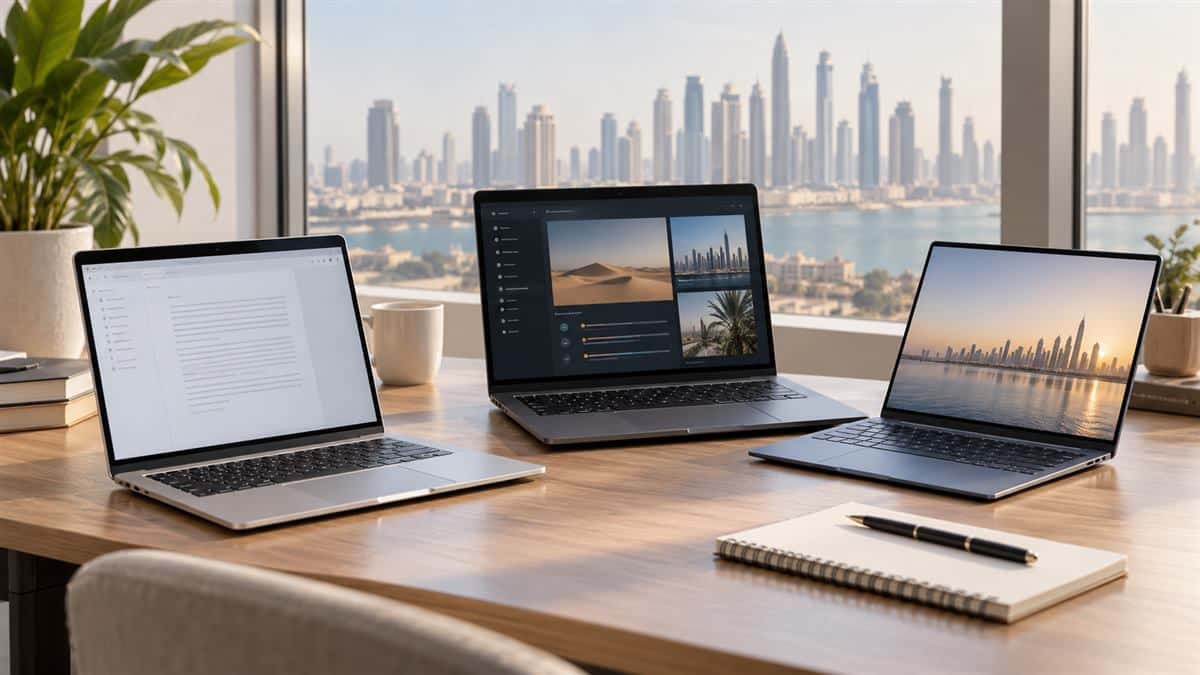
The best laptops under 5000 AED in Dubai cover everything from low-cost study notebooks to capable Windows Pro machines and compact 32GB systems. Your right choice depends on the software you run, the size you are comfortable carrying, and whether memory or storage can be upgraded later.
We compared six laptops currently listed by UAE Tech Dubai (Berjaya Electronics) and checked their product pages on 27 October 2026. Prices and availability can change, so confirm the live listing before ordering. These are configuration-based recommendations; we have not run lab battery tests or independent benchmarks on these units.
At AED 1,260, the ASUS Vivobook Go 15 OLED E1504FA-NJ287 is the lowest-cost pick here with a 15.6-inch Full HD OLED panel and a 512GB NVMe SSD. Its AMD Ryzen 5 7520U and Windows 11 Pro suit lecture notes, web research, Office documents, video calls and streaming.
The trade-off is its 8GB of onboard memory. That is adequate for everyday tasks, but limits heavier multitasking and memory-intensive creative apps; choose a 16GB model if you routinely keep many demanding apps open. It is a practical first laptop for school or university when the budget matters more than upgrade headroom.
The HP 15-dy2073dx is listed at AED 2,650 with a 15.6-inch Full HD IPS touchscreen, Intel Core i7-1165G7, 16GB DDR4 and a 512GB SSD. It gives students and home-office users comfortable memory and storage for browser tabs, assignments, spreadsheets and video meetings without spending close to the AED 5,000 ceiling.
Keep the processor generation in mind: this is an 11th-generation Core i7, so the “i7” label alone does not make it faster than newer Core Ultra laptops. Pick it for its price, 16GB configuration and touch display, rather than for the newest platform.
For AED 3,100, the Lenovo ThinkPad E16 Gen 1 pairs an AMD Ryzen 7 7730U with 16GB RAM, a 512GB SSD and Windows 11 Pro. Its 16-inch WUXGA (1920 × 1200) anti-glare IPS display gives spreadsheets and side-by-side documents more room than a typical 15.6-inch FHD screen.
This configuration makes sense for business users, remote workers and students who prefer a larger workspace and a numeric keypad. Integrated Radeon graphics are designed for everyday productivity; choose a laptop with a dedicated GPU for demanding 3D rendering, advanced CAD or high-end gaming.
The Lenovo ThinkBook 13x Gen 2 IAP is listed at AED 3,650. It combines a 12th-generation Intel Core i7-1255U, 16GB LPDDR5 memory, a 512GB SSD and Windows 11 Pro in a 13.3-inch laptop. Its 2560 × 1600 IPS display and 2.65 lb listed weight make it an attractive option for professionals and university students who carry a laptop between home, campus and meetings.
Its 16GB RAM is soldered, so it cannot be expanded later. The processor is an older generation than the Core Ultra choices in this guide; the appeal is the compact design, high-resolution screen and business-oriented configuration at this price.
At AED 3,850, the Dell Latitude 5550 offers an Intel Core Ultra 5 125U, 16GB DDR5, 512GB SSD and Windows 11 Pro. Its 15.6-inch anti-glare Full HD screen, number pad and business-focused port selection suit office desks, hybrid work and company deployments.
This is a well-balanced choice if you want a recent processor platform and Windows Pro without paying for a premium ultrabook. The listed display is Full HD rather than high resolution, which is a reasonable productivity trade-off at this price.
The Acer Swift 14 AI SF14-51T-75AF is listed at AED 4,699. It has an Intel Core Ultra 7 258V, 32GB LPDDR5x RAM, 1TB SSD and a 14-inch WUXGA IPS touchscreen. That generous memory and storage make it the strongest on-paper option here for heavy browser use, large Office projects, coding coursework and light content creation.
Its integrated Intel Arc 140V graphics are not a replacement for a high-power discrete GPU in demanding 3D workloads. Windows 11 Home is installed, so check whether your employer or university requires specific Windows Pro features before you buy.
Need a broader shortlist? Browse laptops at UAE Tech Dubai or compare the business laptop range. UAE Tech Dubai, operated by Berjaya Electronics, lists delivery estimates and product details on each page for customers in Dubai and across the UAE.
For a business-focused Windows Pro configuration, start with the Dell Latitude 5550 or Lenovo ThinkPad E16. If portability and a high-resolution display matter more, compare the Lenovo ThinkBook 13x; if you want 32GB RAM and 1TB storage, the Acer Swift 14 AI fits under the current AED 5,000 budget.
It can be enough for notes, browsing, streaming and basic Office work. For multitasking, programming tools or keeping a laptop for several years, 16GB is a safer target. The ASUS Vivobook Go listed here has 8GB onboard, so check that limitation before ordering.
Yes. The Acer Swift 14 AI listing includes 32GB RAM and a 1TB SSD at AED 4,699 when checked on 27 October 2026. Verify the live price and availability on its product page because store offers can change.
The ASUS Vivobook Go, HP 15, ThinkPad E16, ThinkBook 13x, Dell Latitude 5550 and Acer Swift 14 AI use integrated graphics in the listed configurations. They suit everyday productivity and light creative work; demanding games, 3D design and GPU-accelerated engineering projects call for a laptop with an appropriate dedicated GPU and software-certified hardware.

Is the Samsung Galaxy Book6 worth AED 7,650 in the UAE? Read our review of the 16-inch Core Ultra 7 355 model, battery-test context, performance and buying advice.

Is the Lenovo ThinkPad X1 Carbon Gen 14 worth it in Dubai? We review the 21V7006FUS OLED model, battery-test context, performance, trade-offs and buying advice.

See independent 4K gaming benchmarks for the ASUS ROG Strix SCAR 18 RTX 5090. Compare native FPS, DLSS results and the 2025 UAE configuration.
Is the ThinkPad P16 Gen 3 worth buying in Dubai for AutoCAD, Revit or SOLIDWORKS? Compare RTX PRO GPUs, RAM options and UAE prices before choosing.

Is the Surface Laptop 8 worth buying in Dubai? This review covers X2 Elite performance, battery test results, Windows on Arm compatibility and current UAE pricing.
Is the Dell 14S DS14260 worth AED 9,299 in the UAE? Review the Core Ultra 9 configuration, OLED display, 70Wh battery, independent test results, ports and trade-offs for Dubai buyers.