
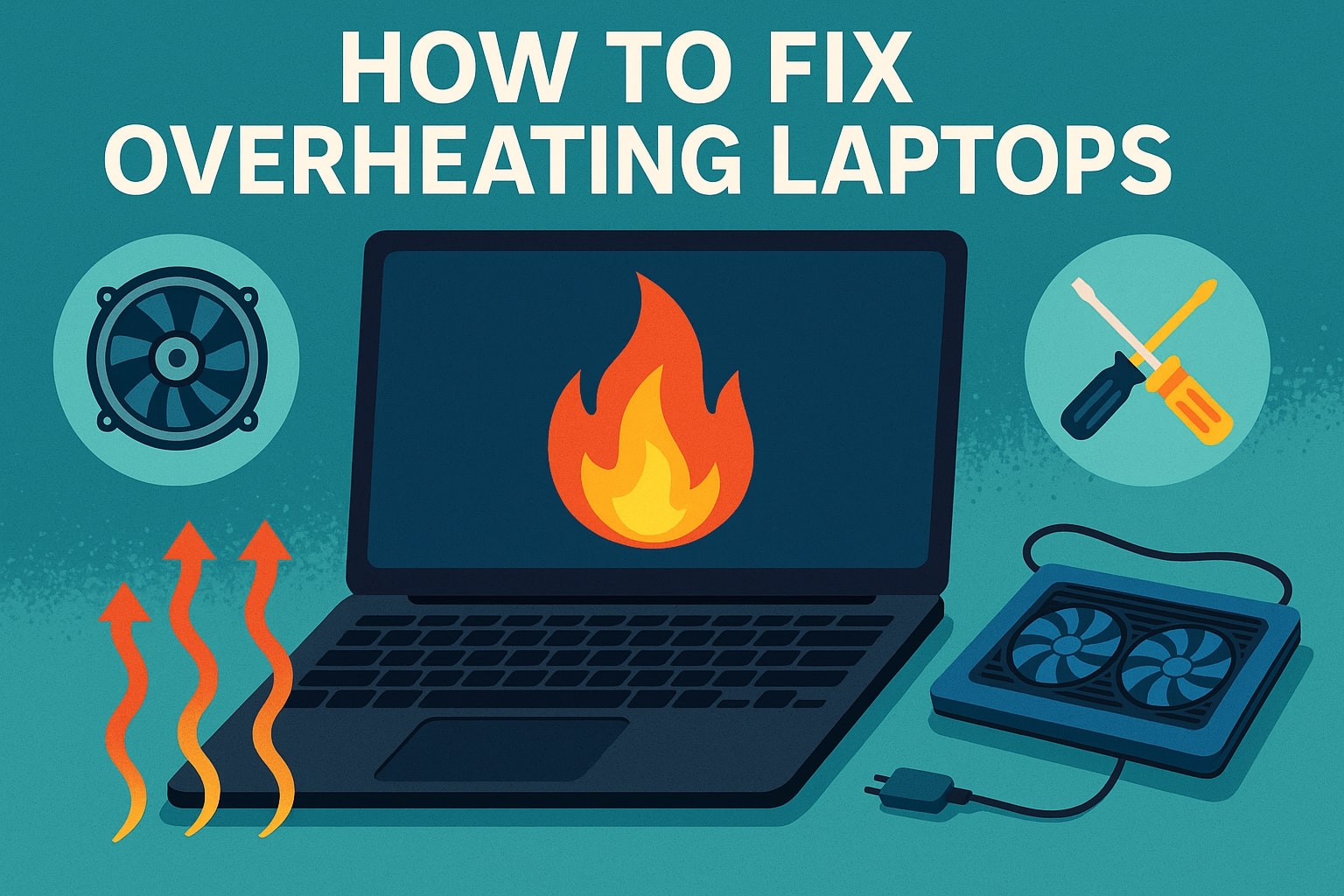
How to Fix Laptop Overheating in Dubai & the UAE (2026 Complete Guide)
If your laptop feels like a hot plate on your knees, shuts down randomly during a video call, or the fan sounds like it’s about to take off – you’re dealing with laptop overheating, and you’re not alone. It’s one of the most common tech complaints across the UAE, and for good reason: between the Gulf’s extreme outdoor heat, dusty air, and long hours of daily use in homes and offices, laptops here work harder to stay cool than almost anywhere else in the world.
The good news? Most overheating problems are fixable in under an hour, often without spending a single dirham. In this guide, we’ll walk through exactly why laptops overheat, why the problem is worse in Dubai and across the UAE, and ten field-tested fixes – from free five-minute tricks to component-level upgrades – so you can get your laptop running cool again.
Why Does My Laptop Overheat? (Common Symptoms to Watch For)
Before jumping into fixes, it helps to confirm you’re actually dealing with an overheating laptop and not something else. Watch for these warning signs:
- The laptop’s base, palm rest, or keyboard becomes uncomfortably hot to touch
- The fan runs loudly and constantly, even during light tasks like browsing or typing
- The laptop randomly shuts down, restarts, or freezes without warning
- Performance slows down noticeably after 15–20 minutes of use (this is called thermal throttling)
- The screen flickers or the laptop displays a blue/black screen error
- You notice a burning smell or the smell of hot plastic near the vents
If two or more of these sound familiar, your laptop is very likely running hotter than it should – and left unaddressed, sustained heat can shorten the lifespan of the battery, motherboard, and SSD.
Why Laptops Overheat Faster in Dubai’s Climate
Laptop manufacturers design cooling systems around average global temperatures, not Gulf summers. That mismatch is a big reason laptop overheating in Dubai and the wider UAE tends to happen sooner and more often than in cooler climates.
High Ambient Temperatures & AC Cycling
When outdoor temperatures regularly cross 45°C between May and September, indoor ambient heat – even in air-conditioned rooms – sits higher than what most laptops are optimized for. A laptop’s cooling system relies on pulling in room-temperature air to cushion internal components; when that intake air is already warm, the fan has to work far harder to keep the CPU and GPU within safe limits. Frequent AC cycling (rooms warming up between cooling bursts) and condensation from sudden temperature swings – for example, bringing a laptop from a hot car into a cold office – can also stress internal components over time.
Sand, Dust & Construction Debris
Fine sand and construction dust are everywhere in the UAE, and they’re small enough to work their way into laptop vents, fan blades, and heatsinks far faster than in most other regions. Once dust builds up on the heatsink fins, it acts like insulation, trapping heat instead of letting the fan push it out. This is the single most common cause of laptop overheating we see reported locally – and it’s also the easiest to fix, as you’ll see below.
How to Diagnose Laptop Overheating (Before You Fix It)
You don’t need to be a hardware technician to check your laptop’s temperature. Free tools like HWMonitor, HWiNFO, or Core Temp (Windows) and Macs Fan Control (Mac) show live CPU and GPU temperatures. As a general guide:
- Idle temperature: 40–50°C is normal
- Under moderate load (browsing, office work, streaming): 50–70°C is typical
- Under heavy load (gaming, video editing, rendering): up to 80–85°C can be acceptable for short bursts, but sustained temperatures above 90°C signal a real problem
If your laptop consistently runs 10–15°C hotter than these ranges, move on to the fixes below.
10 Proven Fixes for Laptop Overheating
1. Clean the Vents & Fans
Power off the laptop, unplug it, and if the battery is removable, take it out. Use a can of compressed air in short bursts to blow dust out of the intake and exhaust vents, holding the fan blades still with a toothpick or cotton swab so you don’t spin them past their rated speed (this can damage the fan bearing). In the UAE’s dusty conditions, doing this every 2–3 months makes a noticeable difference in how cool a laptop runs.
2. Use a Laptop Cooling Pad
A good cooling pad adds extra airflow underneath the chassis, which is especially useful for laptops used on desks, beds, or soft surfaces. Look for pads with larger 140mm+ fans rather than several small, weak fans – they move more air with less noise. Browse our gaming and business laptop accessories for cooling pads and stands suited to Dubai’s warmer indoor temperatures.
3. Replace Thermal Paste
Thermal paste sits between the CPU/GPU and the heatsink, transferring heat away from the chip. It dries out and loses effectiveness after 2–4 years, especially in warmer climates. If your laptop is older and cleaning the vents hasn’t helped, a thermal paste replacement (done by a technician, since it involves opening the chassis) is often the fix that finally brings temperatures back to normal.
4. Elevate the Laptop / Use a Hard Surface
Never use a laptop directly on a bed, sofa cushion, or blanket – soft surfaces block the intake vents on the underside completely, which is one of the fastest ways to trigger overheating. Always use a hard, flat surface, or better yet, a raised laptop stand that improves airflow underneath.
5. Close Background Apps & Manage CPU Load
Open Task Manager (Ctrl+Shift+Esc on Windows) and sort processes by CPU usage. Browser tabs, cloud sync apps, and background updates are common culprits that quietly push CPU usage – and heat – higher than necessary. Closing unused apps and browser tabs is a free fix that works immediately.
6. Update Drivers & BIOS
Outdated graphics drivers and chipset drivers can cause inefficient power usage, which generates unnecessary heat. Check the manufacturer’s support page for the latest BIOS and driver updates – these often include power-management and thermal-efficiency improvements.
7. Adjust Power Plan Settings
In Windows, switch to the “Balanced” power plan and cap the maximum processor state to around 80–90% under Advanced Power Settings. This slightly reduces peak performance but meaningfully lowers heat output, especially useful for laptops used for long stretches of light-to-moderate work.
8. Check Room Ventilation & AC Placement
Where you work matters. Avoid positioning your desk in direct sunlight through a window (common in Dubai apartments with floor-to-ceiling glass) and keep the laptop out of direct airflow from an AC unit set to very cold temperatures, which can cause condensation inside the chassis when the unit cycles off.
9. Upgrade Internal Components (SSD/RAM/Fan)
Older HDDs and insufficient RAM force the CPU to work harder and longer to complete basic tasks, generating more sustained heat. Upgrading to an NVMe SSD and adding RAM reduces how hard the processor has to work, which lowers average operating temperature. If the fan itself is worn out or noisy, a fan replacement is usually the most direct fix for chronic overheating. See our laptop components and upgrade parts for compatible SSD, RAM, and cooling parts.
10. Replace an Aging Battery
A swollen or degraded battery can push against internal components and interfere with airflow, while also causing the system to draw power inefficiently. If your laptop is overheating and the battery is more than 2–3 years old or visibly swollen, have it inspected and replaced as a priority – this is also a safety issue, not just a performance one.
When to Stop DIY Fixes and Get Professional Help
Cleaning vents, adjusting power settings, and using a cooling pad solve the majority of overheating cases. But if you’ve tried these and your laptop is still shutting down, throttling heavily, or running dangerously hot within minutes of switching on, it’s time for a professional diagnosis. This usually points to a failing fan motor, a dried-out heatsink connection, a fault on the motherboard’s power delivery, or a battery nearing end-of-life – all of which require opening the chassis safely and using the correct replacement parts for your exact model. Get in touch with our support team in Dubai for a diagnosis and genuine replacement parts before the heat causes permanent damage to your CPU, GPU, or motherboard.
Best Laptops for Hot Climates Like Dubai (If It’s Time to Upgrade)
If your current laptop is several years old and overheating has become a recurring battle despite maintenance, it may simply be more cost-effective to upgrade to a model with a modern, more efficient cooling design. Newer processors (Intel Core Ultra and recent AMD Ryzen chips) run significantly cooler than older-generation chips at the same performance level, thanks to better power efficiency.
Explore our business laptops for reliable everyday machines with efficient thermal designs, or our gaming laptops range if you need serious performance with advanced multi-fan cooling systems built for sustained heavy loads. If you’re comparing options, our guides on which laptop brand offers the best value for money in the UAE and gaming laptop vs. regular laptop break down what to prioritize before you buy.
How to Prevent Laptop Overheating Long-Term
- Clean vents every 2–3 months, especially if you live near construction sites or use your laptop outdoors
- Always use a hard surface or a cooling pad/stand, never soft furniture
- Keep at least 5–10 cm of clearance around all vents when the laptop is on a desk
- Avoid direct sunlight exposure on the laptop, especially near large windows
- Restart your laptop daily rather than leaving it in sleep mode for days at a time
- Service your laptop annually – a professional clean and thermal paste check goes a long way in Dubai’s climate
Final Thoughts – Keep Your Laptop Cool With UAE Tech Dubai
Laptop overheating in Dubai and across the UAE is largely a climate-and-maintenance problem – and almost always fixable once you know what to look for. Start with the free fixes: clean the vents, use a hard surface, close unnecessary background apps, and adjust your power plan. If the problem persists, a cooling pad, thermal paste replacement, or a fan/battery swap will usually solve it for good.
If you’d rather skip the guesswork, UAE Tech Dubai (Berjaya Electronics) stocks genuine cooling pads, replacement fans, SSDs, RAM, and batteries for all major laptop brands, plus a full range of business and gaming laptops built with modern, heat-efficient processors – ideal if your current machine has simply run its course in Dubai’s climate. Browse our laptop accessories and cooling solutions, Fast delivery across Dubai, Abu Dhabi, Sharjah, and the rest of the UAE.
FAQs About Laptop Overheating in the UAE
Is it normal for laptops to run hotter in Dubai than in other countries?
Yes. Higher ambient temperatures and more airborne dust mean laptops in the UAE generally need more frequent cleaning and cooling support than in cooler, cleaner climates.
Can a laptop overheating damage the battery permanently?
Yes, sustained high heat accelerates battery degradation and can cause swelling, which is both a performance and safety concern.
How often should I clean my laptop’s vents in the UAE?
Every 2–3 months for regular use, and more often if you work near construction areas, on carpet, or in dusty environments.
Do cooling pads actually work?
Yes, particularly for laptops used on desks or soft surfaces – they add extra airflow beneath the chassis where intake vents are usually located.
When should I take my laptop to a repair shop instead of fixing it myself?
If cleaning, a cooling pad, and power-setting changes don’t resolve the issue, or if you notice a burning smell, rapid shutdowns, or a swollen battery, stop using the laptop and get it inspected professionally.