
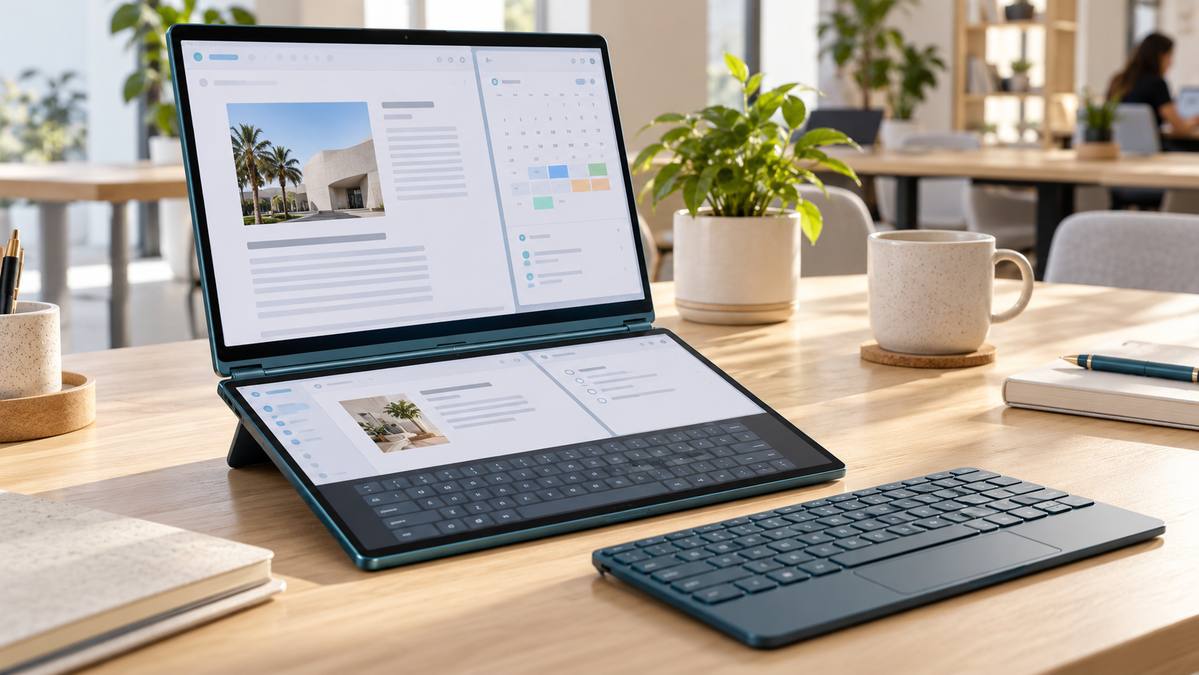
To get the most from Lenovo Yoga Book 9 dual screens, set them up as separate Windows displays: keep one app on each panel, move windows with Lenovo’s transfer controls, and choose the physical setup that fits the task. This guide covers the current 14IAH10, with two 14-inch 2.8K OLED touchscreens. Menu labels can change after software updates, so install current Lenovo support updates if your controls look different.
Start with the right dual-screen settings
For most work, set the displays to Extend so each screen has its own desktop. In Windows, open Settings → System → Display and choose “Extend these displays.” You can also press Windows + P and select Extend. If the screens are set to Duplicate, both panels mirror the same content and some Yoga Book features—including the virtual keyboard—are unavailable.
Next, open Lenovo User Center from Windows Search. On the supplied Bluetooth keyboard or Lenovo virtual keyboard, F12 is the User Center hotkey. This app controls the window-transfer assistant, cross-screen browsing, virtual keyboard and touchpad triggers, dual-screen wallpaper, and separate brightness levels. For the 14IAH10, Lenovo also provides YogaBook9 Solutions for Windows 11; keep Lenovo software and Windows up to date.
Choose a Yoga Book 9 setup for the job
Notebook mode: type on one screen, work on the other
In the familiar stacked-screen position, place the Bluetooth keyboard on the lower display when you need a conventional typing posture. Keep email, a video call, or a reference document on the upper screen while you write on the lower one. Without the physical keyboard, the lower panel can show Lenovo’s virtual keyboard and floating touchpad. The virtual keyboard has traditional, floating, and mini layouts, so choose the traditional layout for longer typing and a movable layout for short replies.
Book mode: compare documents side by side
Turn the device into a side-by-side reading setup with the supported folio arrangement. This works well for comparing a brief with a spreadsheet, reading a PDF while taking notes, or keeping a browser beside a writing app. When enabled in User Center, cross-screen browsing can extend a supported webpage or document across both panels. Lenovo notes that some apps do not support this feature, so use two separate windows if a page splits awkwardly.
Smart Folio stand: work at a desk or share a screen
The Yoga Book 9 14IAH10 supports two Smart Folio stand arrangements: one for notebook or book positioning with the Bluetooth keyboard, and another for notebook positioning when you prefer the virtual keyboard. Check the exact product listing for the accessories included with your UAE configuration. A stand setup is useful for a video call or presentation; use a paired Bluetooth keyboard when you need to take notes. Lenovo says cross-screen browsing is available in notebook and book modes, not stand or tablet mode.
Useful Yoga Book 9 shortcuts and touch gestures
- F12: Open Lenovo User Center from the supplied Bluetooth keyboard or virtual keyboard.
- F10: Show the floating virtual touchpad on the lower screen.
- Three-finger tap: Open the floating touchpad after enabling this trigger in User Center.
- Eight-finger tap on the lower screen: Open the Lenovo virtual keyboard if that activation option is enabled.
- Five-finger touch on the other screen: Extend a supported window across both displays after enabling Cross-screen Browsing. Use notebook or book mode.
- Drag a window’s title bar: Hold and drag until Lenovo’s transfer arrows appear, then drop the window on the arrow for the destination screen. Enable mouse or touch transfer in User Center if the arrows do not appear.
- Windows + P / Windows + Z: Open Windows display modes / Snap Layouts for standard display and window arrangement options.
Three practical productivity layouts
- Research and writing: Keep source material in the browser above and your notes or document below. Use separate windows for quick switching; try cross-screen browsing for long pages or PDFs.
- Meetings: Put the call on the upper panel and your agenda, calendar, or notes on the lower panel. A physical Bluetooth keyboard is more comfortable for typing minutes.
- Spreadsheets and creative work: Keep the main file on one screen and a reference, chat, or asset folder on the other. Use the window-transfer arrows to move an app instead of repeatedly minimizing it.
Fix common dual-screen problems
If an app will not move or span both panels, first confirm that Windows is using Extend, then check that the relevant option is enabled in User Center. Cross-screen browsing is limited to notebook and book mode, and individual apps may not support it. If the virtual touchpad or keyboard does not appear, enable its trigger in User Center or use the system-tray control. Lenovo’s Yoga Book 9 14IAH10 User Guide has model-specific steps and troubleshooting notes.
Is the Yoga Book 9 right for your workflow?
The dual-screen design is most useful if your day involves comparing information, writing while researching, or keeping a meeting and notes visible together. The key is to set Windows to Extend, learn the F12 and F10 shortcuts, and keep a Bluetooth keyboard handy for longer sessions. See the Lenovo Yoga Book 9 14IAH10 product listing at UAE Tech Dubai for the current configuration and availability in Dubai, UAE.


Leave a Comment
Your email address will not be published. Required fields are marked *